1.3.3 Etere desktop installation (old)
Important note: This installation method consists of launching Etere Update (EtereInstall.exe) on each workstation where Etere is to be installed and performing the steps described below for each of them. The installation method was subsequently updated and, starting from Etere version 36, the procedure to follow is the one described in chapter 1.3.4.1 Etere desktop installation through EtereWeb. In the near future, the installation of desktop modules will be migrated to the new EtereUpdate.exe installer, therefore the procedure to follow will be the one described in chapter 1.3.4.2 Etere desktop installation through EtereUpdate.exe.
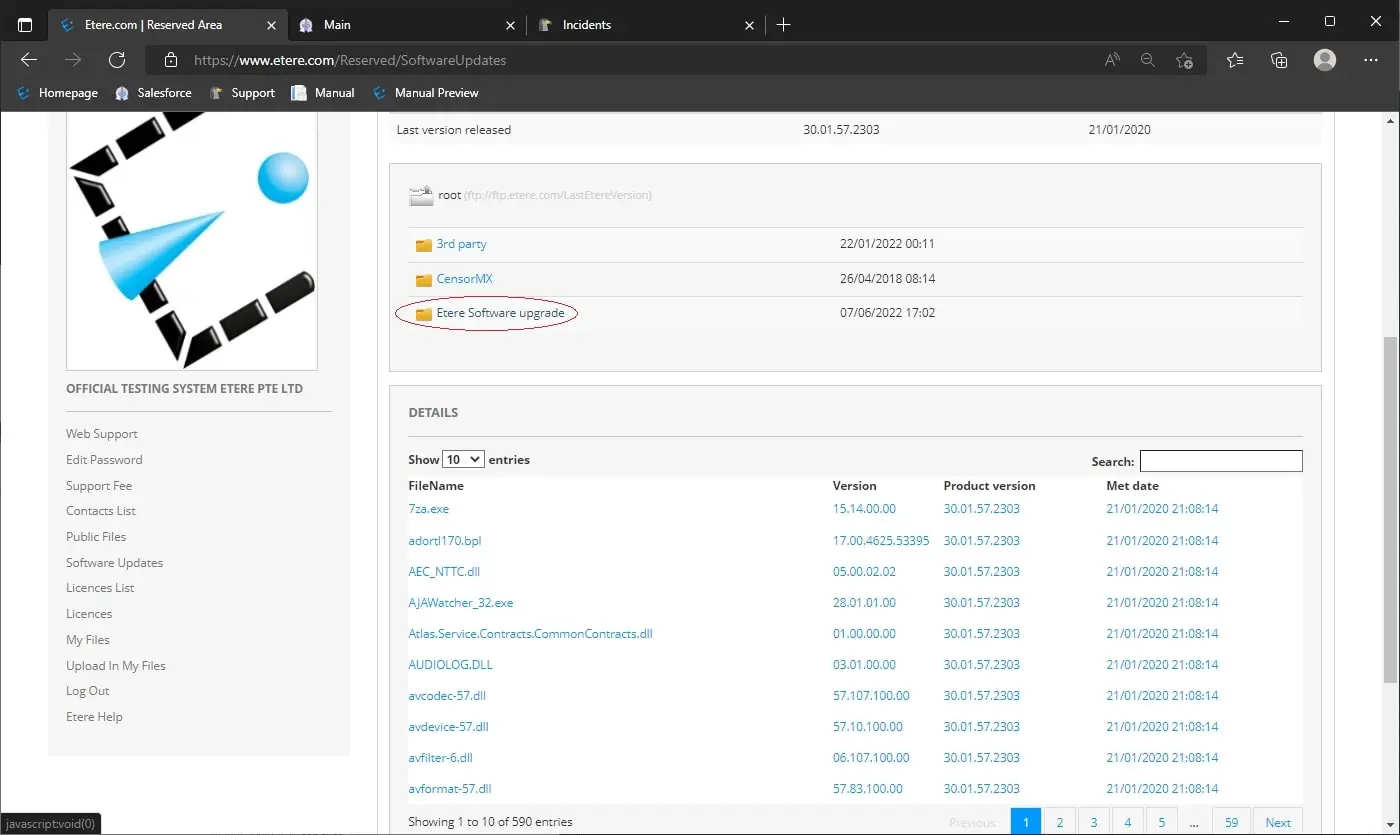
1. Log in to your reserved area and under the Public files section, download the file Etereinstall.exe
Etere Install
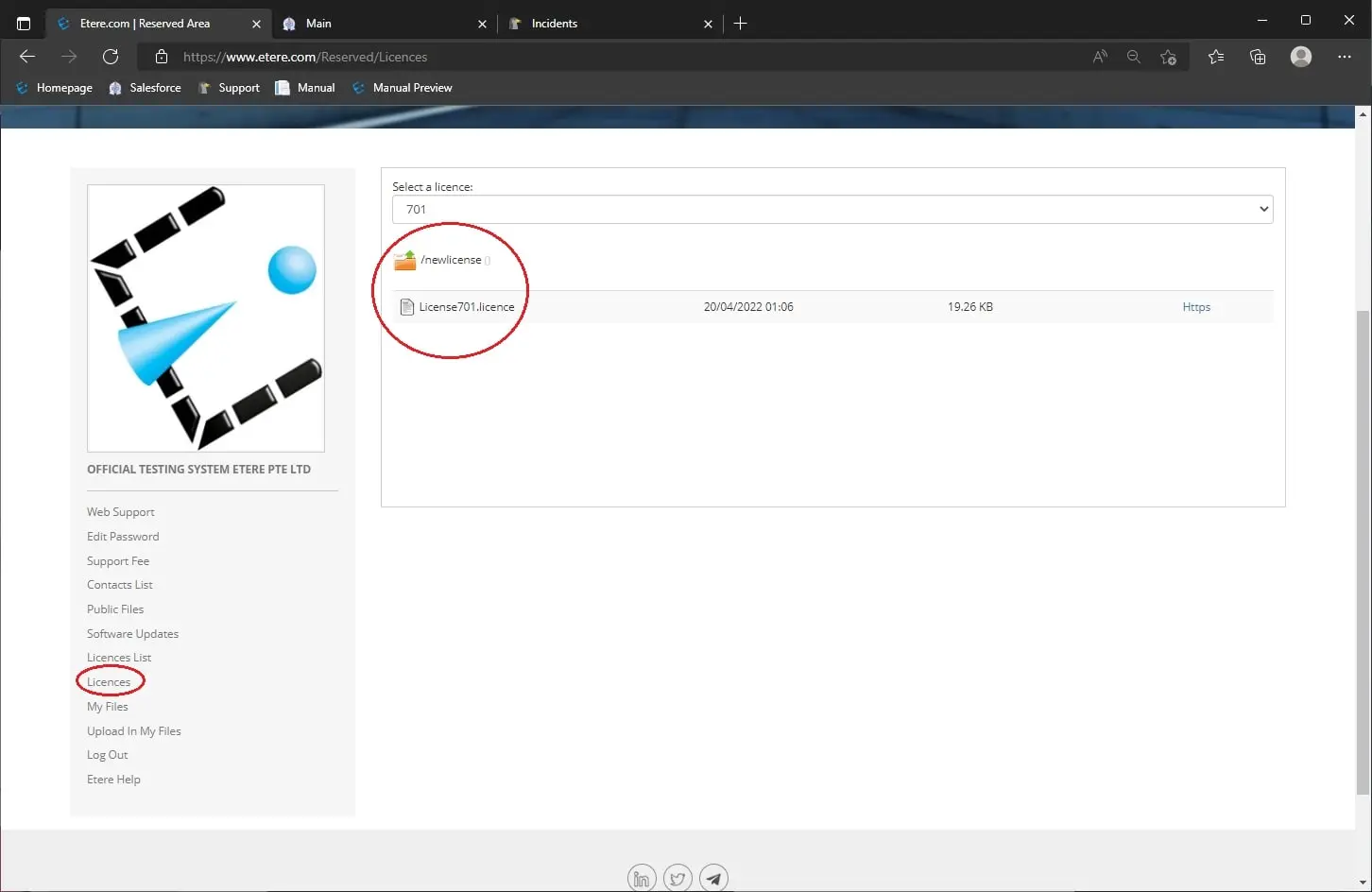
2. From the reserved area, download also your license under the licenses section > newlicense
License
3. Launch Etere install
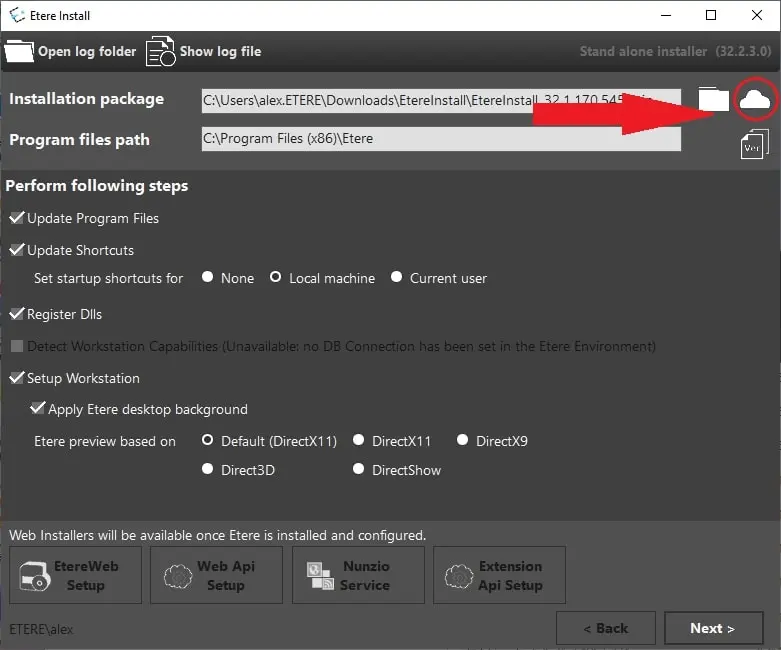
4. Click the cloud next to “installation package” and select the latest release (not release candidate)
Latest version
5. Etere will automatically install everything, so click next and select the modules you need (you can install any module, but you’ll be able to run only licensed modules) and choose configuration, as that’s necessary to set up and use Etere in the future. You’re also able to add more modules later, so don’t worry if you select the wrong one or you miss one.
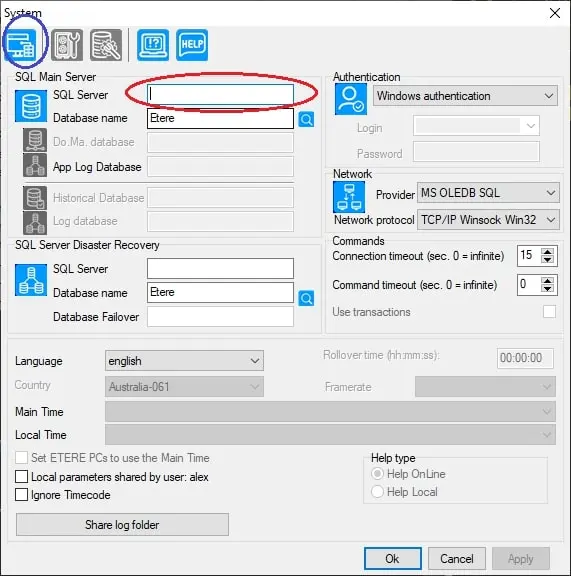
6. Run as admin “Etere configuration” and connect to your SQL server
Connect SQL
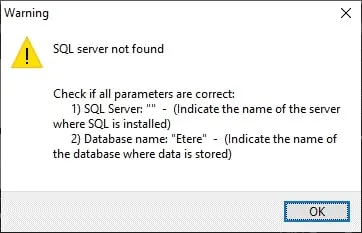
7. You’ll get this screen as you still haven’t set it up
First Error
8. Enter your database name or select it from the list, and click the top left icon to connect
9. Click next and enter your license previously downloaded from the customer area
10. Now that Etere is successfully installed, you can launch your modules.
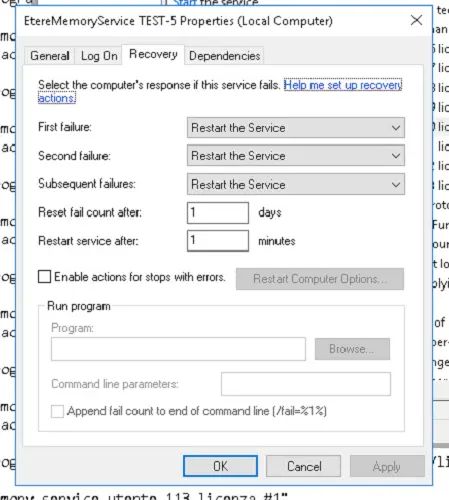
Note: Etere Update, when one or more services are being installed, will automatically set the service's Recovery options as shown in the following image:
recovery_tab_service
REGISTRY KEYS
Some of Etere modules' features rely on the Windows Registry, reading values from specific keys. Etere Installer automatically sets these registry entries during the update.
Since they are written to folders associated with the station codes, which are not known until a database connection is established, during the initial installation, Etere Install does not perform this step. It will create the entries if the PC is successfully connected to the database at the next run.
The registry keys created by EtereInstall.exe are the following:
• HKCU\SOFTWARE\Etere\Automation\{user.XXX}\Options\MP4ForceTop
Type: "REG_DWORD"
Value: 0
• HKCU\SOFTWARE\Etere\Automation\{user.XXX}\Options\OutputSDIExcludeNDI
Type: "REG_DWORD"
Value: 0
• HKCU\SOFTWARE\Etere\Automation\{user.XXX}\Options\WaitAfterCueMsecs
Type: "REG_DWORD"
Value: 0
• HKCU\SOFTWARE\Etere\Automation\{user.XXX}\Options\LogByDayFiles
Type: "REG_DWORD"
Value: 0
• HKCU\SOFTWARE\Etere\Automation\{user.XXX}\Options\AvoidLogging
Type: "REG_DWORD"
Value: 0
• HKCU\SOFTWARE\Etere\Automation\{user.XXX}\Options\AutomationSNMP
Type: "REG_DWORD"
Value: 0
• HKCU\SOFTWARE\Etere\Automation\{user.XXX}\Options\UseDiagnostics
Type: "REG_DWORD"
Value: 0
IMPORTANT NOTE: The modification of the Windows registry is a sensitive operation that can affect Etere modules' behaviour. ALWAYS contact Etere Support before performing any change. Etere assumes no responsibility for customers performing this kind of operation without prior notice to Etere Support.
 Etere_Install
 License
 Latest_version
 First_Error
 Connect_SQL
 Recovery_tab_service