84.4.5.11 STANDARD > GENERIC > TXT
Import Scope
The generic TXT import is able to import from text files (plain text, linear text, etc) information required for inserting events into broadcast schedules.
Imported events must be formatted in a linear format separated by a consistent symbol (e.g. semicolon). Each line should contain at least the basic information required for scheduling an event, that is: date (position 1: 2002.07.03), start time (position 2: 06:03:48), duration (position 3: 00:04:54:00), code (position 4: C013287) and description (position 5: OUTSIDE). For instance:
20020703;06:03:48;00:04:54:00;C013287;OUTSIDE
20020703;06:08:42;00:04:11:00;C020894;HELLO GOOD
20020703;06:12:53;00:03:31:00;C020731;WE ARE ALL MADE OF STARS
If the imported event contains audio, an audio icon would appeared in the asset’s properties column in the schedule. The supported audio types are defined in Audio Configuration section in Etere Configuration module.
Import Parameters
This import module requires the following parameters to be set in order to be correctly used:
Import tab
Import_standard_generic_txt
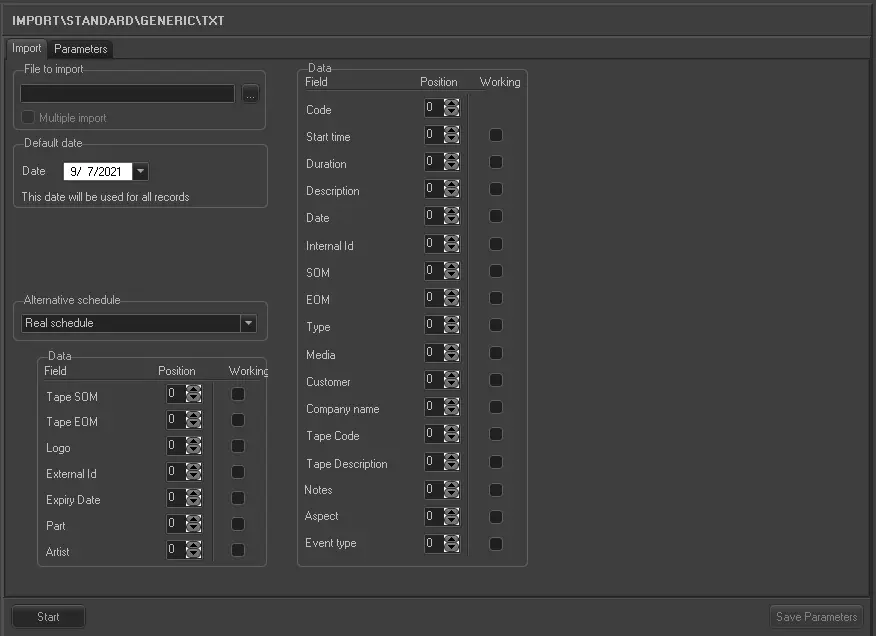
•File to import: Select the file to be imported and its file path.
❑ Multiple import: If enabled, the import can be triggered multiple times within the same day.
•Default date: Set here the scheduling date in which to import events for which a date has not been specified (neither in the filename nor the date field). Unless this date is manually changed, the default date is automatically set as the next day (i.e. current day plus one).
•Parameters archive: This hidden parameter can be enabled by pressing the CTRL key. In this field you can specify the name of the .ini file that contains all the import settings, to either load or export it,
•Alternative schedule: Indicate the scheduling level on which the schedule will be imported, that is, into the real schedule or any of the 10 alternative ones,
•Data: Specify here the relative position of each information field in the file to be imported, as well as activating/deactivating its use (i.e.: working).
Some of this information is fundamentally important to scheduling and the file should not be imported if this information is missing. For example:
oWhen commercials have been grouped in clusters all commercials from the same cluster should all have the same scheduled start time in the import file however, this parameter can be changed. During import, any commercial note pertaining to the asset properties or settings would be retained in the asset form, it would not be overwritten or removed.
oWhere LIVE events are concerned, the scheduled start time must be set in the import file. Information regarding media support or type of event will be imported into the asset form.
oIn the Import tab, if the event part of program is not divided into parts, the “Part” Data field's value must be set as “0”.
Parameters tab
Import_standard_generic_txt_1
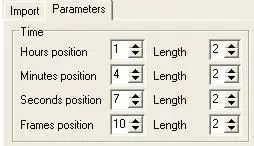
•Time: Set the predefined time format. For example, set it at "hh:mm:ss:ff " the Hours position would be 1 with a length of 2 (hh), the Minutes position would be 4 with a length of 2 (mm), the Seconds 7 and 2 (ss) and finally the Frames position at 10 (ff):
Hmfile_hash_66d7e048
Hmfile_hash_7c6eb97e
•Duration: Set the duration formats indicating the position and length of the hours, minutes, seconds and frames,
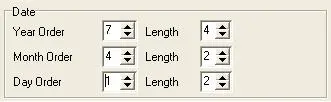
•Date: For the date you can also define the format in the import file. For example "dd/MM/YYYY" you would set Year order 7, length 4 (YYYY); Month order 4, length 2 (MM) and finally Day order 1 length 2 (dd):
Hmfile_hash_cb18cca9
Hmfile_hash_fc642e1a
•Mark In/Out: Set the format of the "Mark in" and "Mark out" by indicating the position and length of the hours, minutes, seconds and frames.
•Separator: You can define the separator that is used in the ".txt" file, usually a semicolon (;) or the pipe (|) are used.
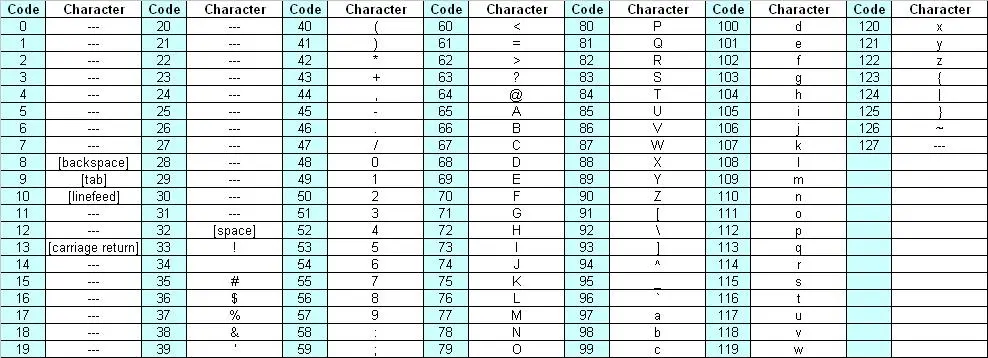
❑In some cases an ASCII character such as TAB can also be used. In this case you need to activate the function 'Use ASCII Code' and insert the appropriate ASCII codes in the Fields Separator. Below is a table that outlines the various ASCII characters and their relevant codes:
Hmfile_hash_cc954552
❑Update Schedule from External ID: If among the fields imported an external ID exists by checking this box it is possible to update the schedule using the external ID.
❑Check the external ID only in the current user: By enabling the option, only external ID of the current station would be checked.
❑Import from excel: this option needs to be checked if the import file is in an excel format.
❑ Import Media: Defines if the asset forms created all have a digital media by default.
•Import on daily scheduling: If you are importing the schedule for the current day, this parameter defines what time on the schedule the import starts from. It is calculated as "Current time + Time shift". Events with a start time before the current time will not be imported.
•Destination path of import file: Define a path where to copy the imported file. After the copy is performed it will ask if you want to delete the source file.
❑Always update LIVE: If enabled, "live" events¹ will be updated in the Media Library with the imported "duration", "Mark in", "Mark out", "Type" and "Description".
¹ : "Live" events must have a special string “0LIVENNNNN” (NNNNN : source router channel) in their "media" field.
❑Delete events not present in the file: Allows you to delete all events scheduled on the imported day but not present in the imported file.
❑Assign same scheduled time for adjacent types: For events that have the same typology and fall adjacent to each other in the schedule (e.g. commercials in a cluster) this parameter allows you to assign the same scheduled time to these events. In the 'Data' to import under the previous tab the field HOUR must not be activated for this parameter to work.
❑Separate clusters with the same scheduled time: If in the import file, more than one cluster has the same scheduled time, by setting this parameter the start time of the clusters are shifted by one minute based on the property 'Group in Cluster'.
❑Do not overwrite empty codes if the internal ID is present: If in the import file you have lines without a code, but with an internal ID, by checking this parameter the code will be read from the schedule according to the internal ID. Set this parameter only if in your import file you have lines without a code by with an internal ID.
❑Import assets only: Enables you to import only the asset forms from the file.
❑Import the actual duration if the asset is ingested: Enable this option to import the actual duration for ingested assets.
•Import into the level 701, if within x hours before the On-Air: Allows you to import the data into a scheduling level 701 if it is imported within the specified number of hours from on-air. This can help to avoid making changes to the schedule only a few hours before transmission and to allow the operator to check the variations for manual acceptance. Leave the value as “0” to import the playlist into real schedule.
❑Force the duration even if the asset is ingested: This option force the import to update the asset duration in archive even the asset has been ingested with different duration.
❑Always update the asset: Enable this option to update the asset even if the assets already exist in the archive. Elements that would be updated includes duration, Mark in/Mark out, asset type, description and asset insert point.
NB: If enabled, the import would first check the COD_PROGRA field (asset code) in Asset Repository table in database to determine the asset type to be assigned. This would provide assets without <NewType> specified or Unknown type (“0000”) being imported into database.
❑Import into level 703 with today's date: Enable it in case of importing a list of assets intended to be recorded. These asset will be inserted in the tomorrow's playlist at the current time, this, into the scheduling level 703 in order to make them "invisible" from the playlist editor but not from the search engine (e.g. to search unrecorded commercials which are scheduled for the next 24 hours).
❑Import also past date: If enabled, it allows to import text schedules if the scheduled date is a past date.
❑Debug: Checking the 'DEBUG' function activates or deactivates the window which shows the application's internal messaging. It's used for purposes of inspection and controlling the Import/Export process.
AD Insertion Mode
Please note that If the "AD Insertion mode" is enabled in Etere AD Insertion, all imported events -except live events- will be set as "to be transmitted by AD Insertion" (i.e. split=1) and an ID will be automatically generated for them.
Launch the import
Once the import has been configured, it can be started just by pressing the <Start> button, once the import has finished, it will be possible to display the schedule of the related day to verify and/or approve the import operation.
 5207_Import_standard_generic_txt
 5208_Hmfile_hash_7c6eb97e
 5209_Hmfile_hash_66d7e048
 5206_Import_standard_generic_artists_txt
 5210_Hmfile_hash_fc642e1a
 5211_Hmfile_hash_cb18cca9
 5212_Hmfile_hash_cc954552