12.4 Stories Viewer
In ETERE WEB, from the left menu under the NUNZIO section, there is the STORIES VIEWER function.
This tab is used to view the rundowns. It can also be used during LIVE productions, for example by a news operator using a tablet to follow and manage the rundown in real time.
When opening STORIES VIEWER, the following fields and controls are available:
Rundown Description
Full-text search field used to search and identify a rundown.Date Range (From / To)
Used to define the start and end dates of the search range.SEARCH button
Blue button used to start the search.
After pressing SEARCH, all matching rundowns found in the system are listed on the left side of the screen.
For each rundown, the following information is displayed:
Rundown's date as prefix
Rundown's name
Selecting a rundown from the list opens it (the selected “Rundowns” will be moved to the right-hand side of the results list to make it easier to find the one you’ve chosen).
In the central section called SEGMENTS, all segments belonging to the selected rundown are displayed.
After selecting a segment, the STORIES section displays all stories related to that segment.
When opening a story, the title is shown at the top an text below, together with the available controls:
Previous / Next arrows
Used to move between stories inside the selected segment.Full Screen button
Used to display the story viewer in full screen mode and viceversa.Specifically, when operating in full-screen mode (STORIES VIEWER), users can now navigate between stories using swipes:
• Swipe right to move to the next story.
• Swipe left to return to the previous story.
Text Zoom bar
Used to increase or decrease the text size.Vertical Scroll bar
Used to scroll up and down through the story content.
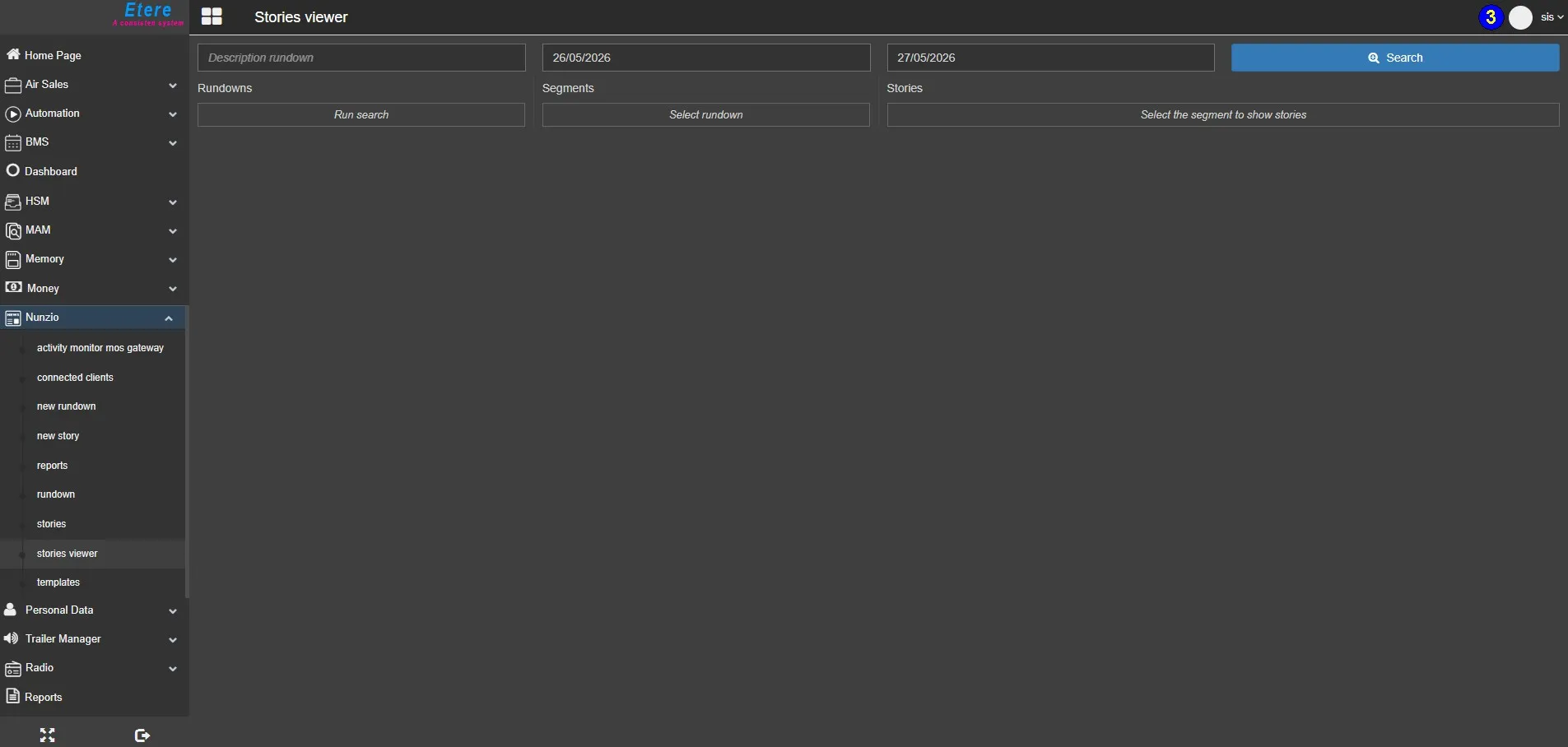 NUNZIO_Stories_Viewer
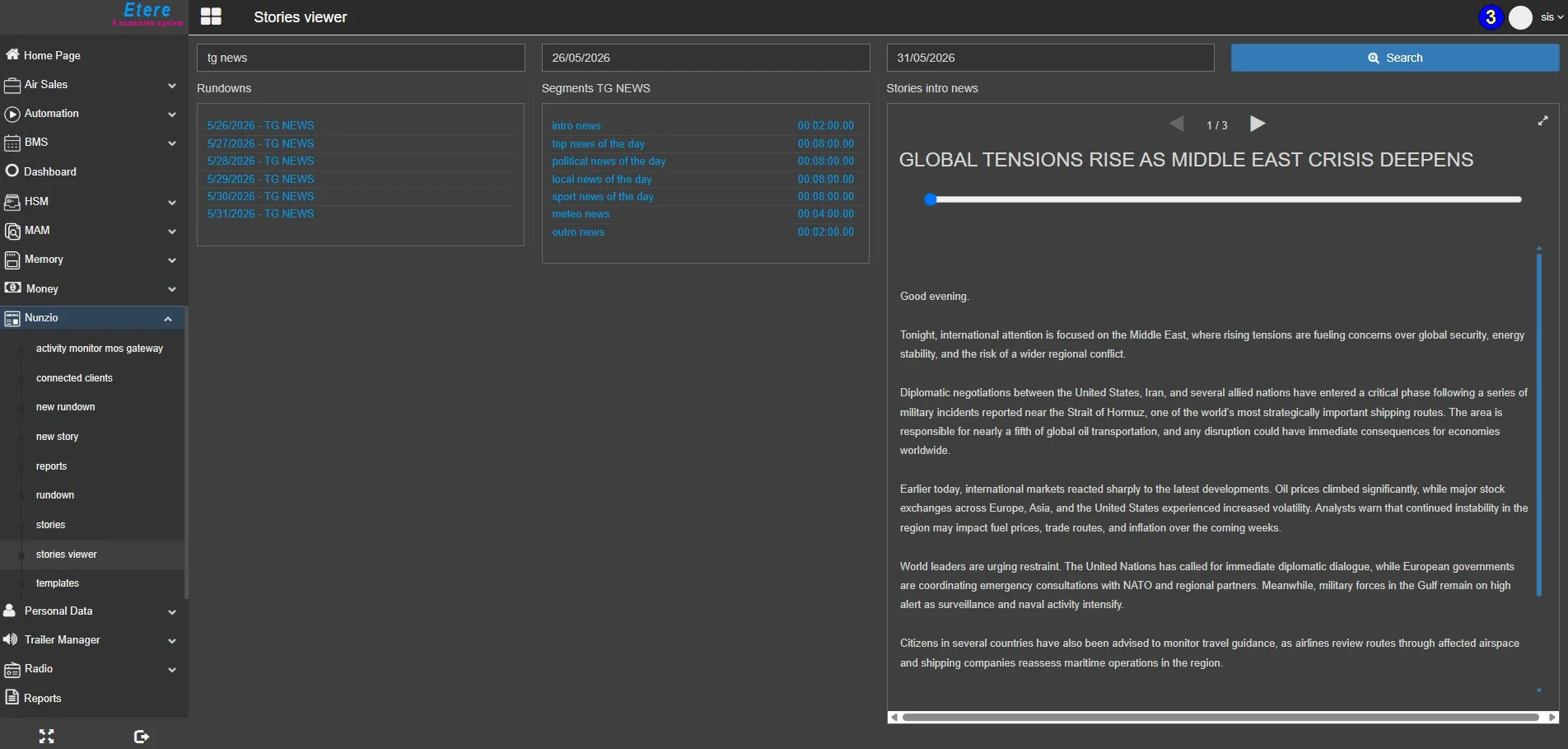 Stories_Viewer
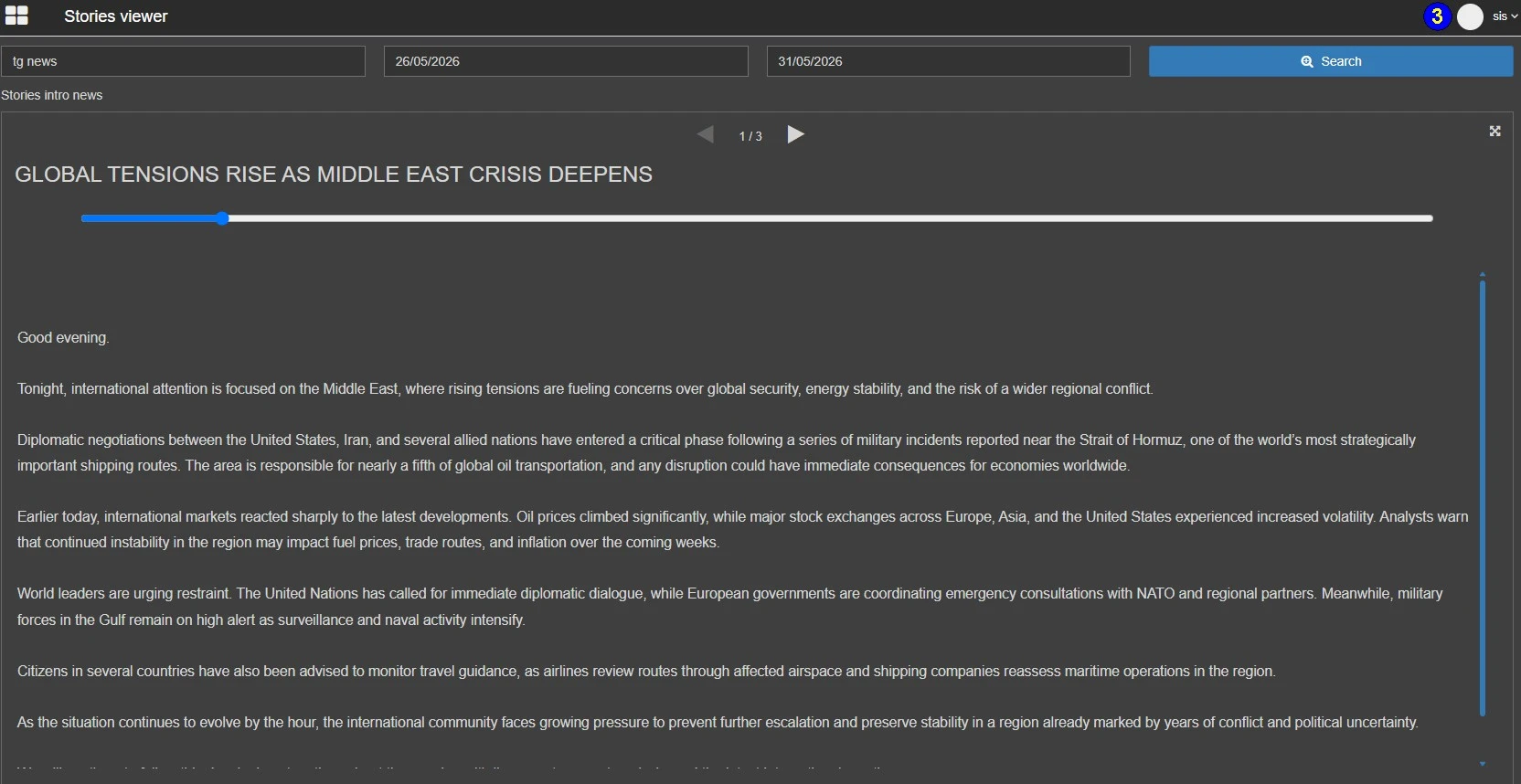 Story_Selected
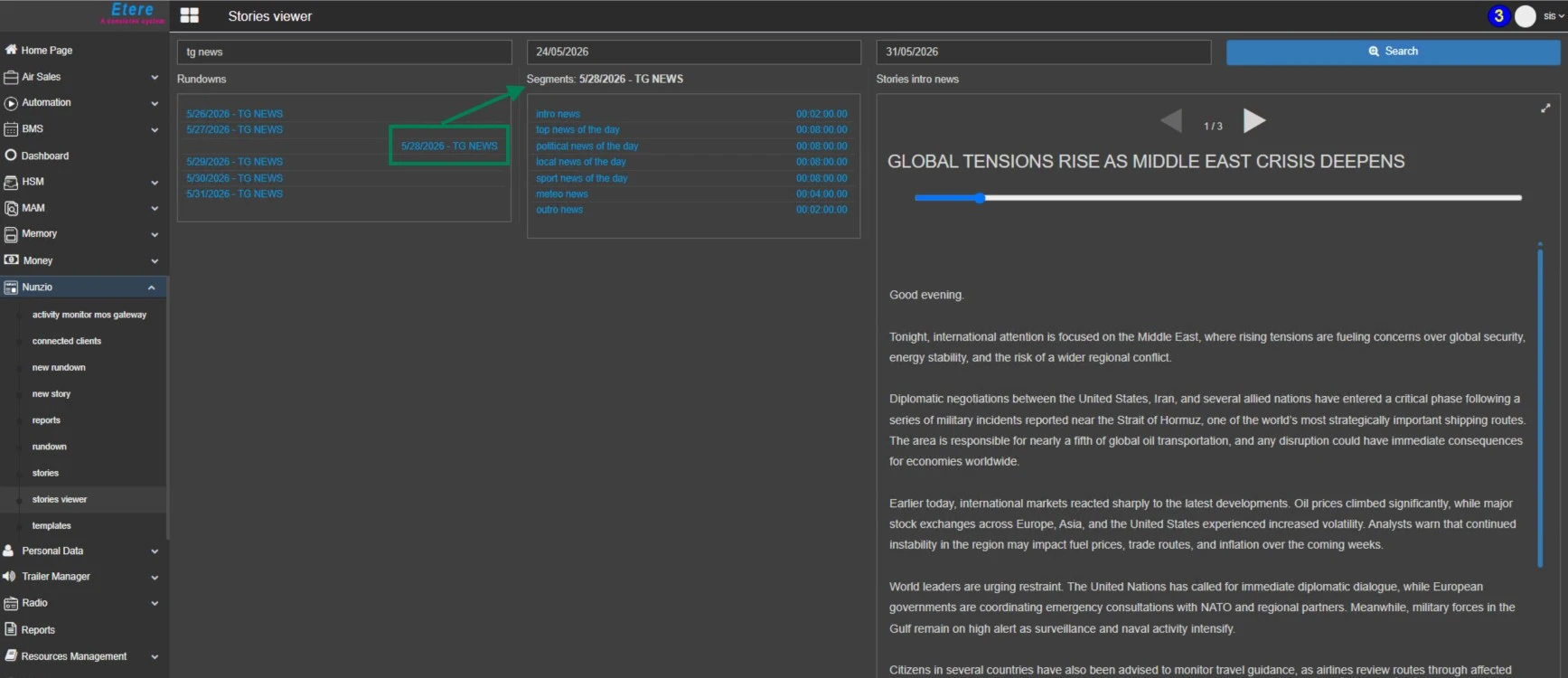 Rundown_Selected