9.7 Web Censorship
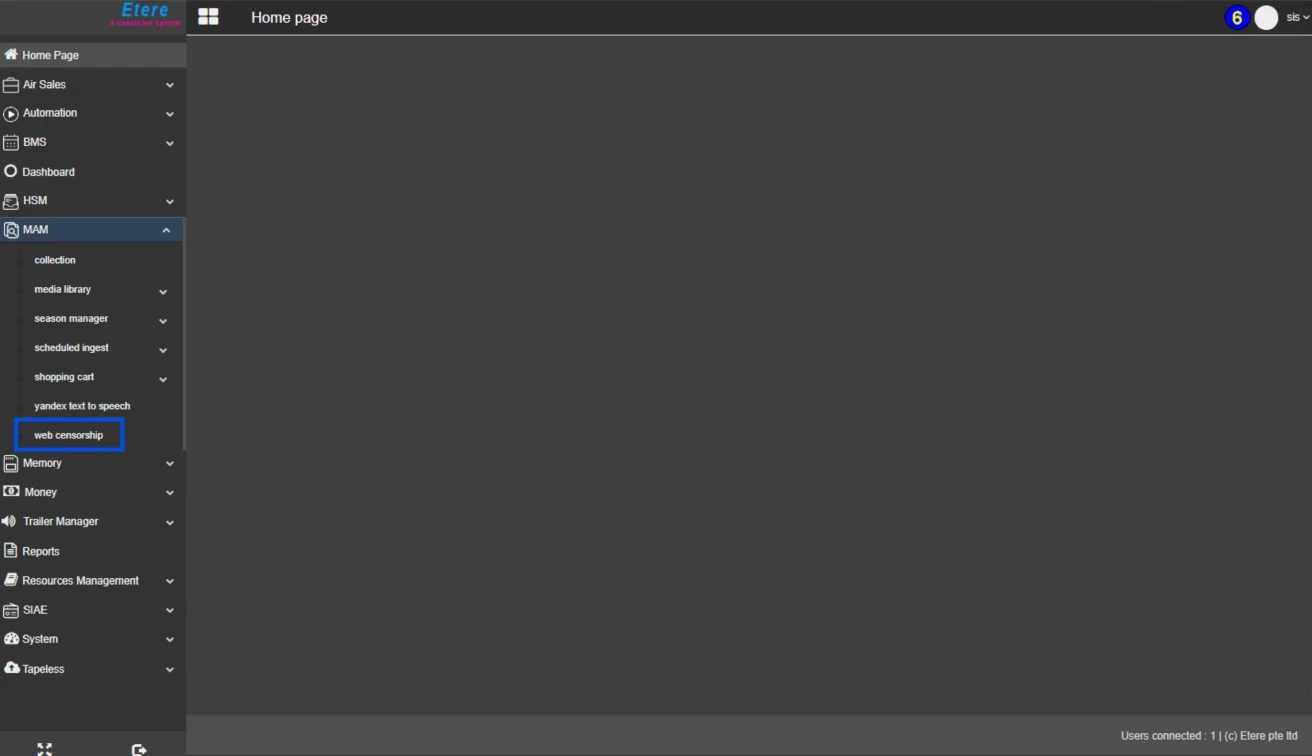
Within the ETERE Web interface, under the MAM (Media Asset Management) section available in the left-hand navigation menu, the Web Censorship module provides a dedicated environment for reviewing and managing assets processed by the Media Manager Service – Auto Censorship function (refer to section 93.2.1.27 MMS - Auto Censorship for detailed background on the automated process).
By selecting Web Censorship, a new workspace is launched, specifically designed to facilitate the identification, inspection, and refinement of assets that have undergone automated censorship analysis.
Interface Overview
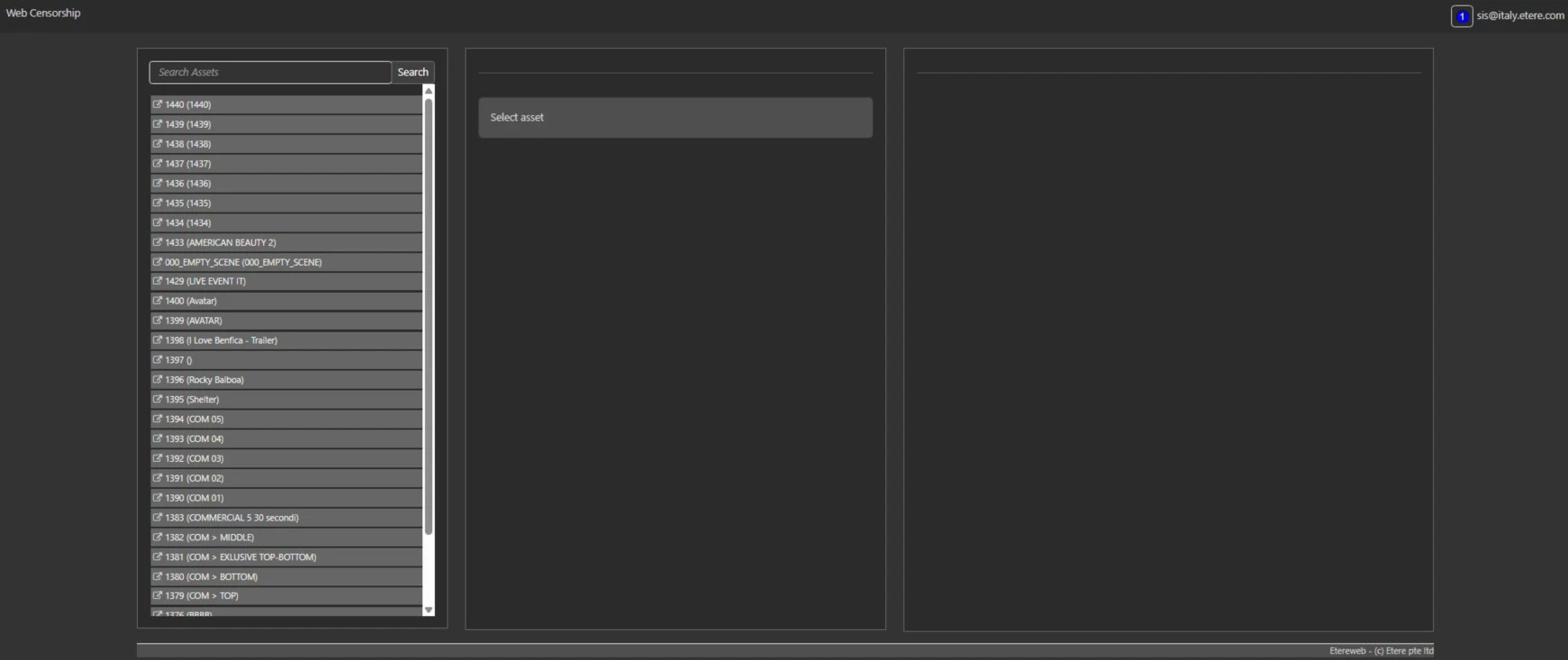
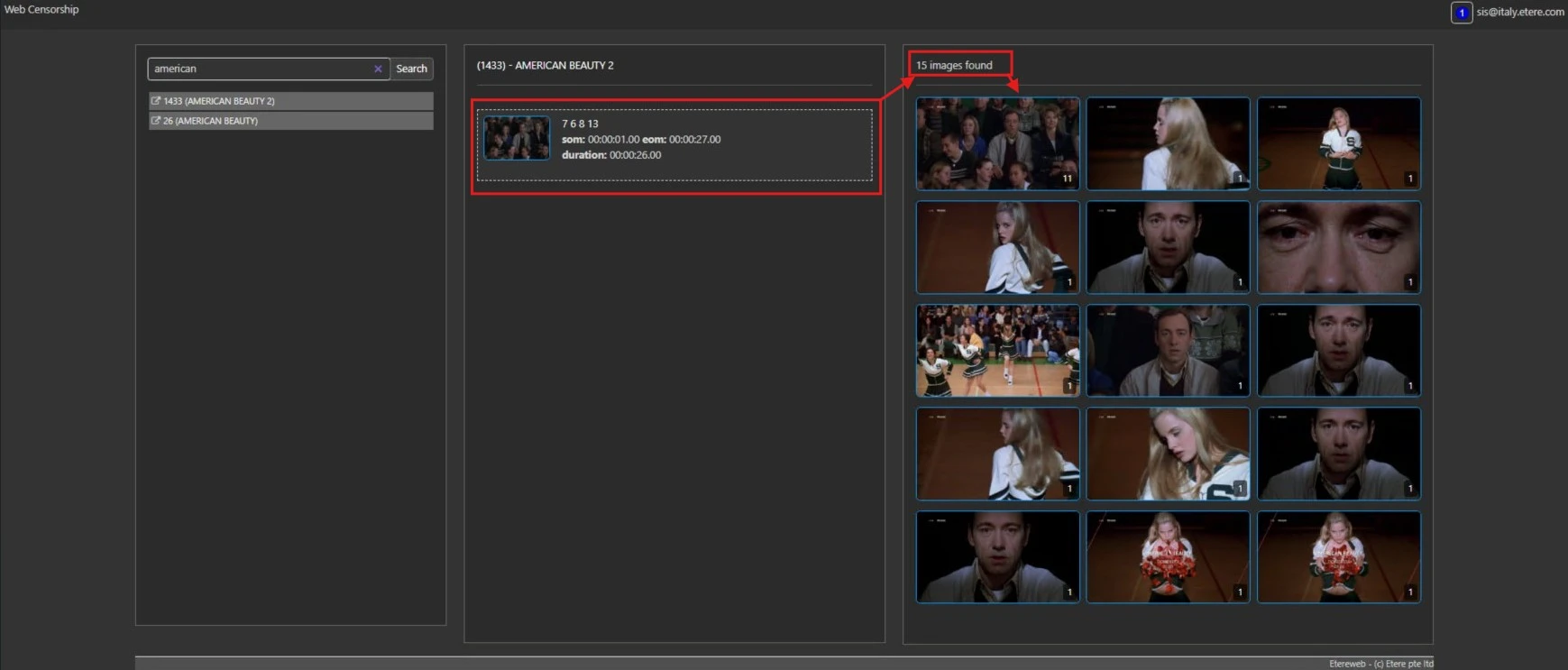
The Web Censorship workspace cab be divided in three macro areas:
1. Search Assets (Left Panel)
This section provides access to the full repository of assets stored within the system.
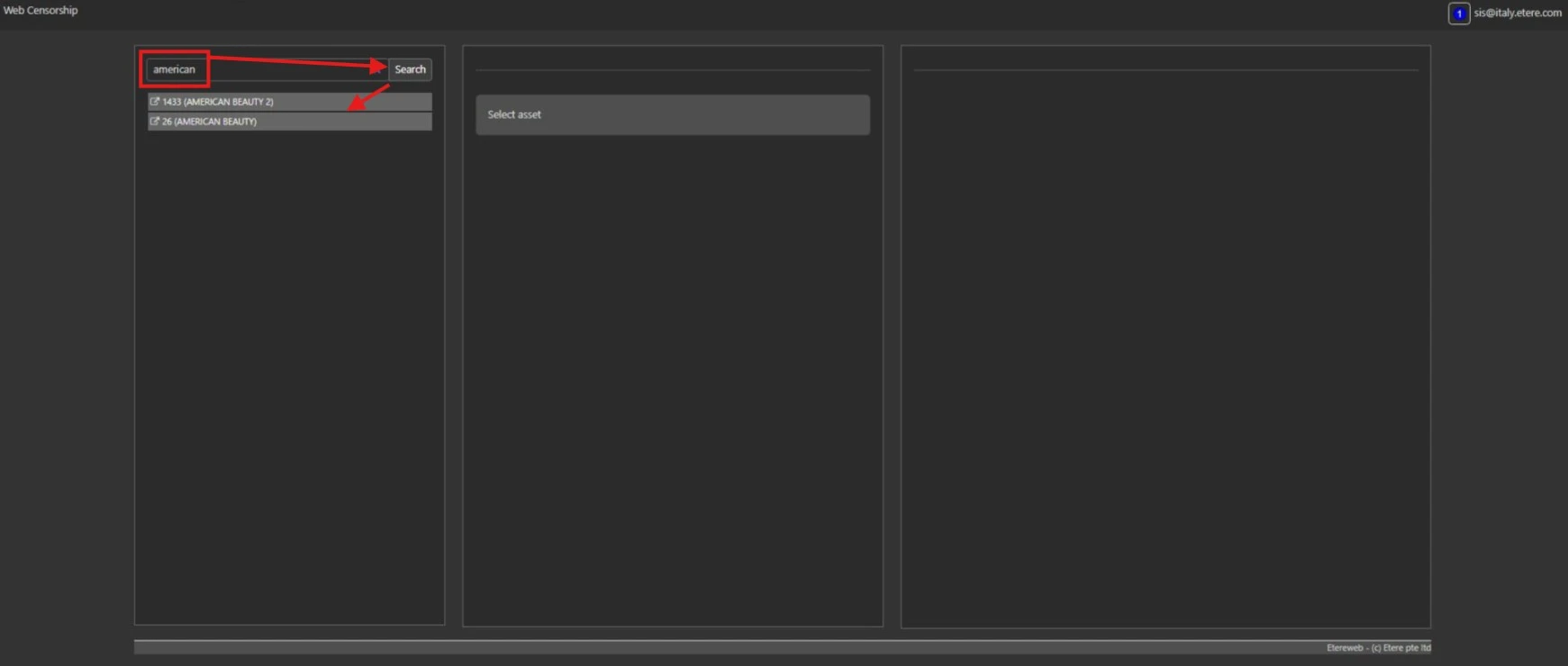
- A full-text search engine enables operators to efficiently locate assets of interest by entering one or more keywords (e.g., title, metadata, or descriptive terms).
- After entering the desired search criteria, click the SEARCH button to execute the query.
- The system returns a filtered list of matching assets based on the provided input.
- To proceed with analysis, simply click on the NAME of the asset in the results list to load it into the workspace.
- To open an asset you have to click on the GO TO ASSET button to open it i a new tab by using usual ETERE WEB
This mechanism ensures rapid navigation across large media libraries, significantly reducing the time required to locate relevant content.
2. Selected Asset (Central Panel)
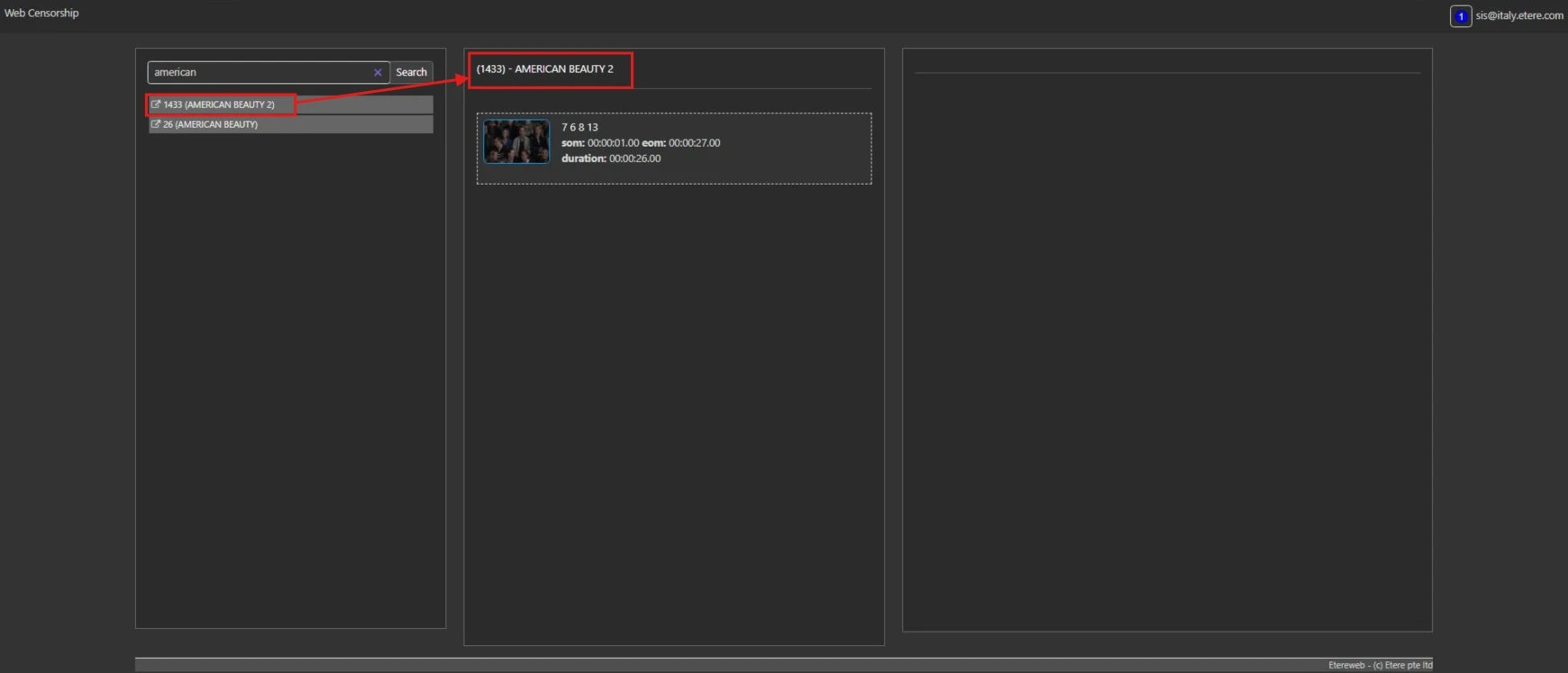
This area displays the asset currently selected from the search results.
- The selected asset is presented as the primary working item for review. In this area, the operator will see the asset ID in brackets at the top, followed by the asset title to the left of that. Immediately below are the asset thumbnail and other details such as SOM (start of media), EOM (end of media) and DURATION (asset duration)
- By clicking on the asset within this panel, the operator can access the detailed viewing and editing interface, where it is possible to:
- Review the media content
- Inspect associated metadata
- Apply modifications or corrections as needed
This panel acts as the central hub for all asset-specific operations within the Web Censorship module.
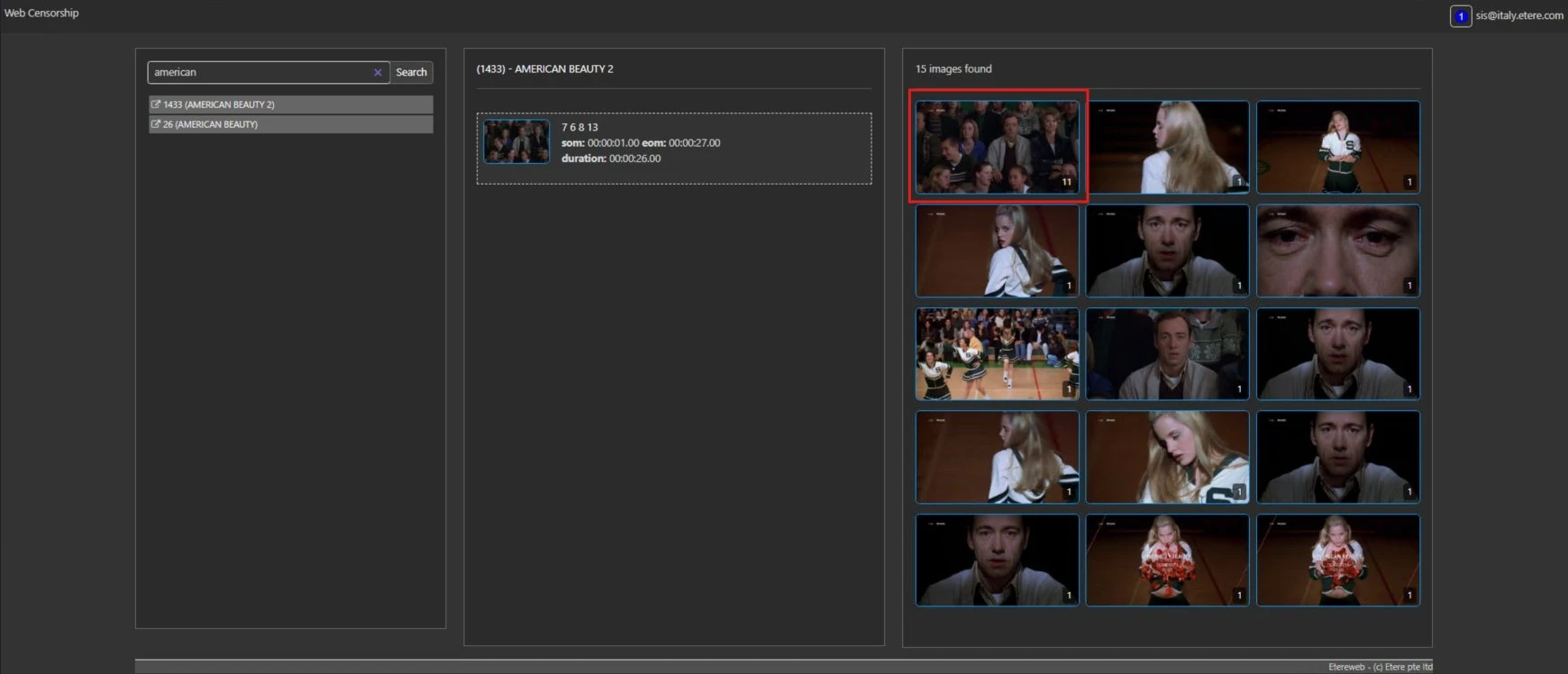
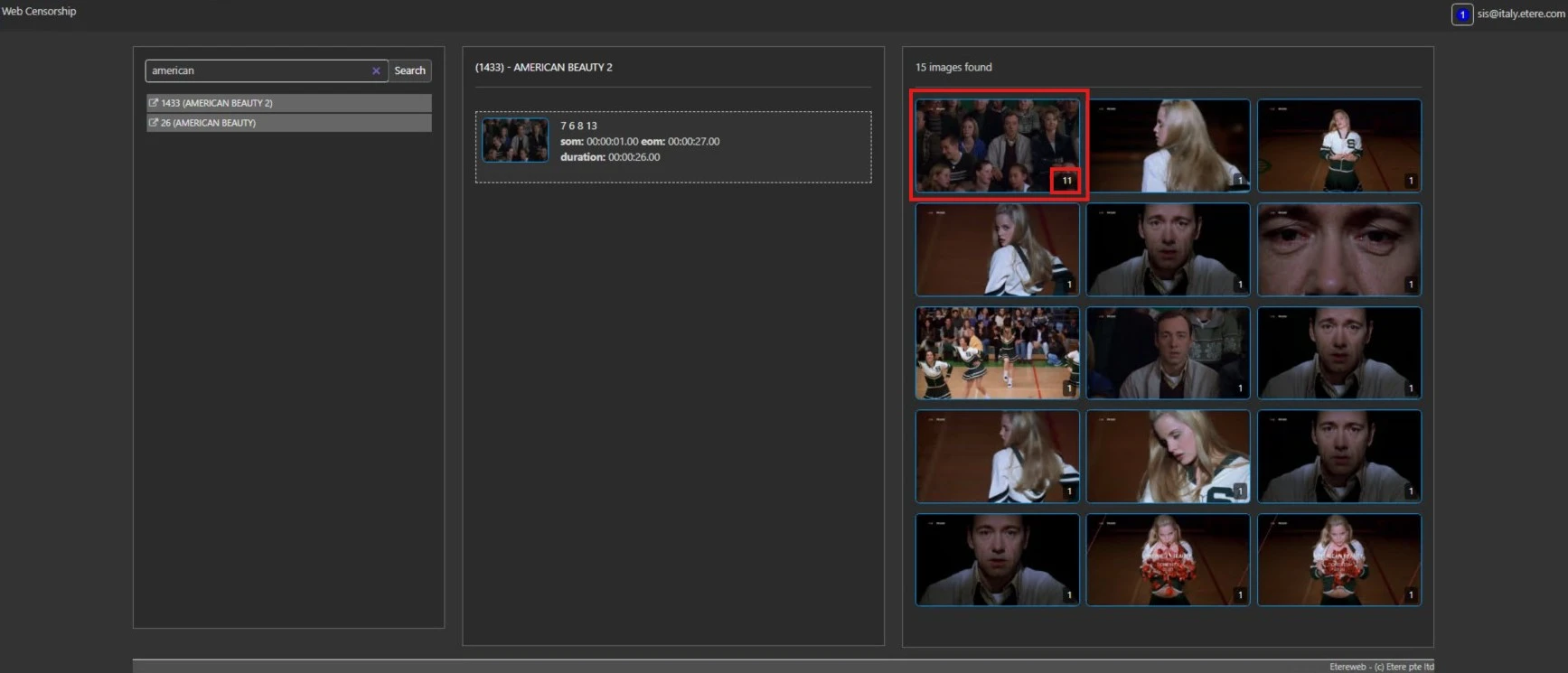
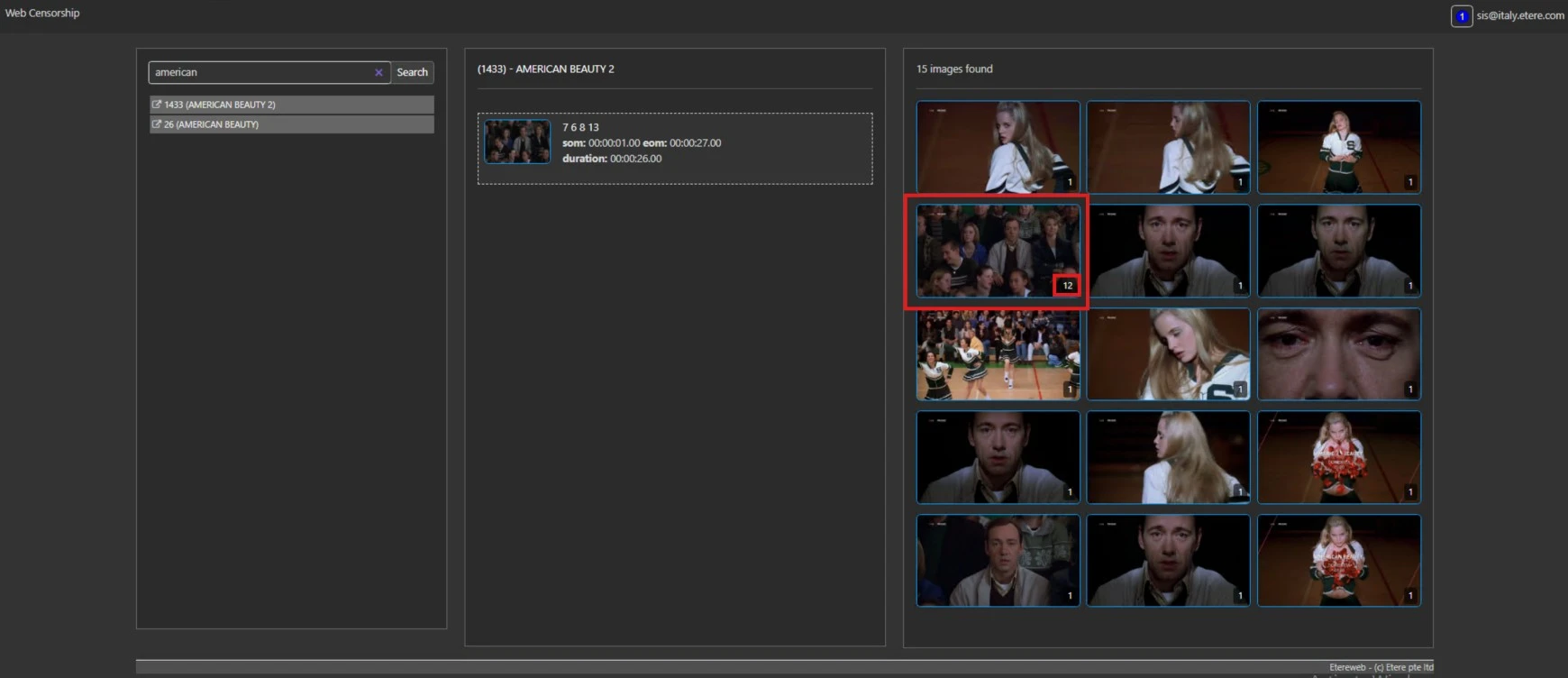
3. Images Found (Right Panel)
This section provides a detailed overview of the censorship results generated by the Auto Censorship process.
- The system displays:
- The total number of detected and censored images within the selected asset
- A series of thumbnail previews representing each flagged instance
- Each thumbnail corresponds to a specific segment or frame identified during automated analysis.
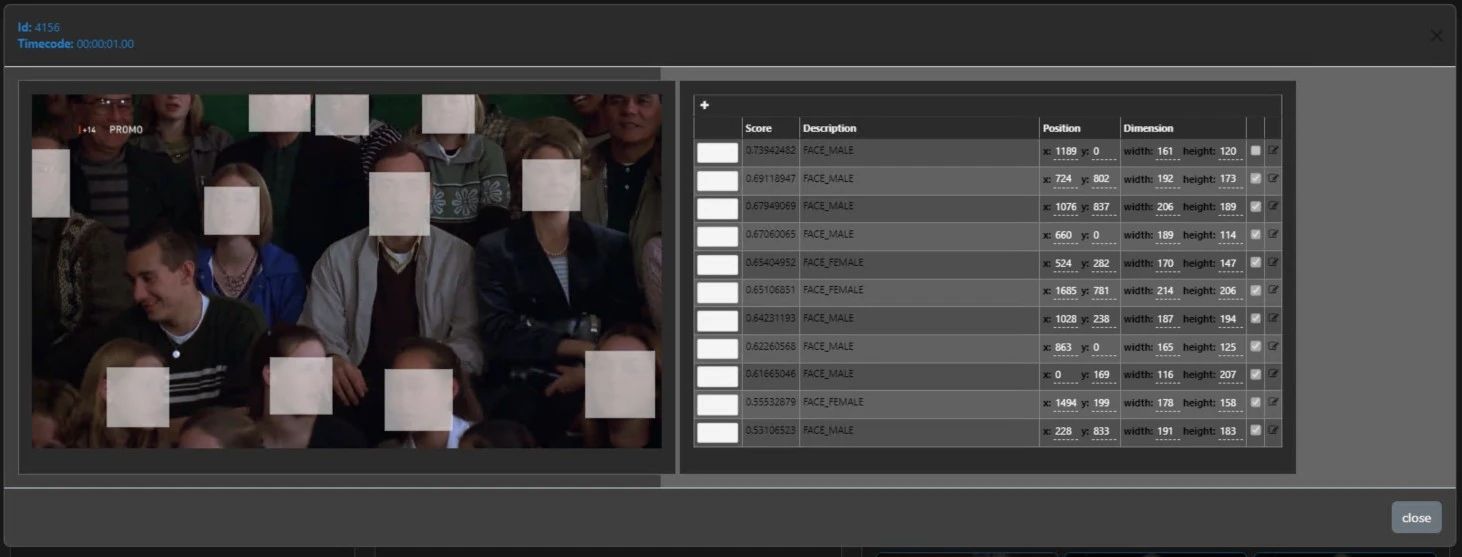
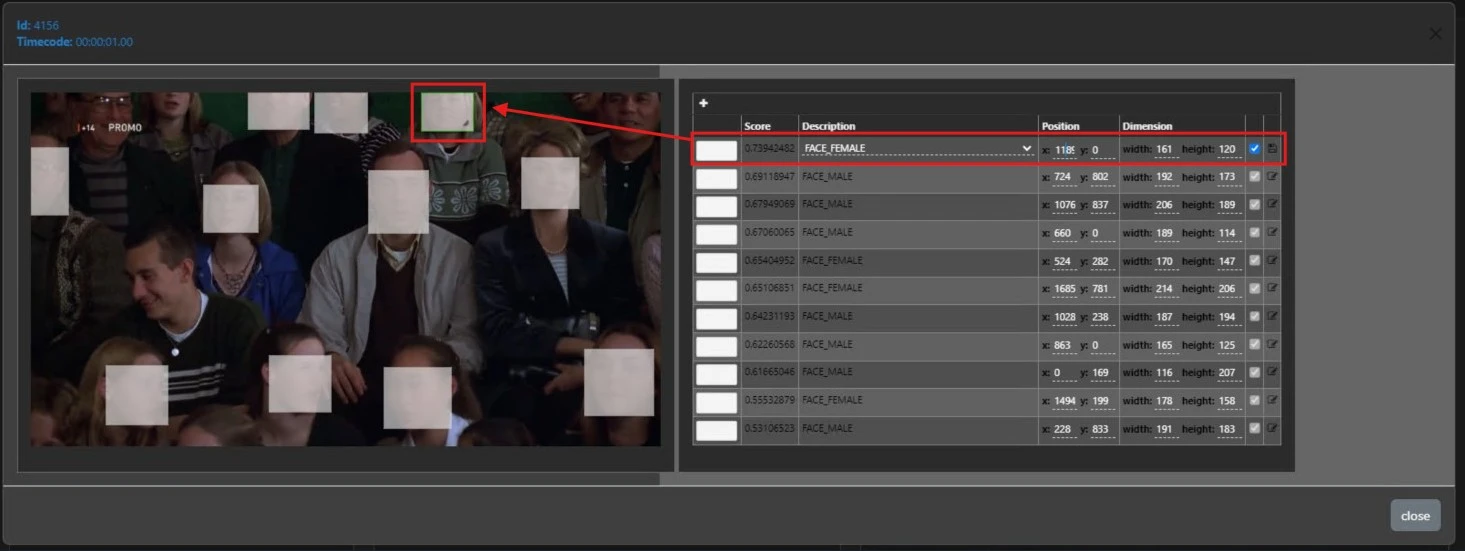
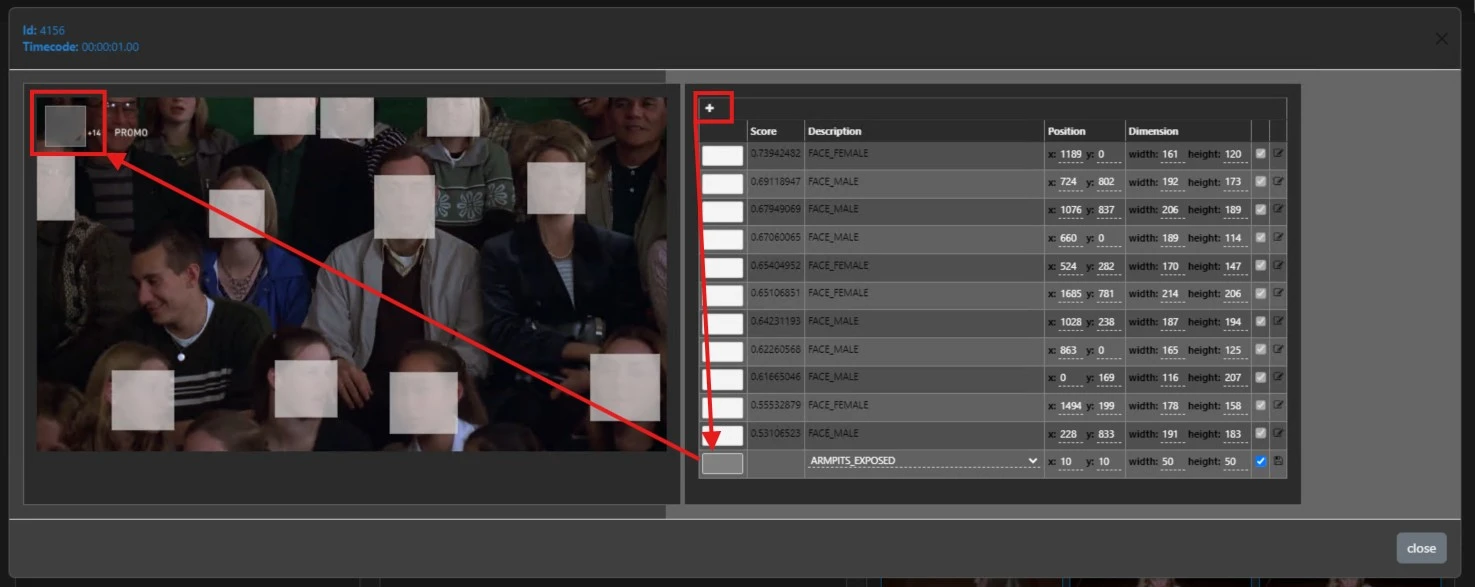
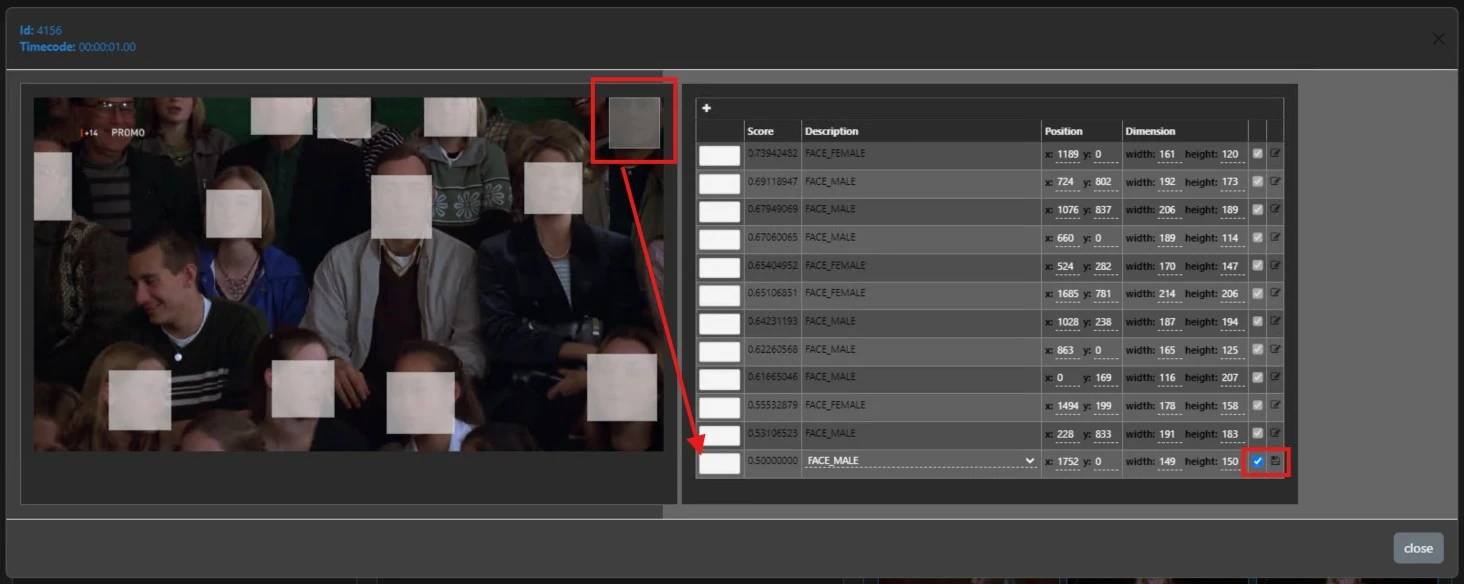
- By clicking on any preview image, the system opens a dedicated editing interface where the operator can:
- Review the flagged content in context
- Refine or adjust censorship parameters
- Retrieve or restore relevant information if necessary
This panel enables precise, frame-level validation and correction, ensuring that automated censorship results can be verified and fine-tuned according to editorial or compliance requirements.
Operational Workflow
- Access the Web Censorship module from the MAM menu
- Use the Search Assets panel to locate the desired asset via keyword search
- Select an asset from the results to load it into the Selected Asset panel
- Review detected censorship results in the Images Found panel
- Open individual flagged images to perform detailed inspection and editing
- Apply any necessary adjustments to ensure compliance and accuracy
Key Considerations
- The Web Censorship module is intended as a post-processing validation tool for assets already analyzed by the Auto Censorship service
- Operators retain full control over reviewing and refining automated results
- The interface is optimized for efficiency, traceability, and precision, particularly in high-volume media environments
- All modifications performed within this module contribute to maintaining editorial standards and regulatory compliance
This module represents a critical component of the ETERE ecosystem, bridging automated content analysis with human validation to ensure the highest level of accuracy and control in media censorship workflows.
Important:
Access to Web Censorship is strictly limited to assets that have already undergone the Auto Censorship process. Assets that have not been processed by this service will not be available for selection or editing within this interface.
 ETERE_WEB_CENSORSHIP
 WebCensorship_0
 WebCensorship_1
 WebCensorship_2
 WebCensorship_3
 WebCensorship_4a
 WebCensorship_4b
 WebCensorship_5
 WebCensorship_6a
 WebCensorship_6b
 WebCensorship_6c
 WebCensorship_6d