79.4.6.5 Highlights Story Creation
This chapter assumes that all the required settings for Highlights Story have already been configured (see chapter 79.4.6.8. Rundown Settings).
First, create a new empty story in the Rundown and select the Highlights Story button.
[nunzio story button]
After that, open and edit the stories that will be included in the Highlights Story you have just created.
You can edit the flexi that will be used as On-screen Text (as defined in the Rundown Settings) by clicking the Edit button.
[edit button]
From here, you can also open the asset by clicking the button highlighted in the image below.
[flexi-metadata]
For the selected asset, EDL 9 is dedicated to this function. The user can therefore define the Mark In and Mark Out points that will be included in the Highlights Story.
[Highlights EDL9]
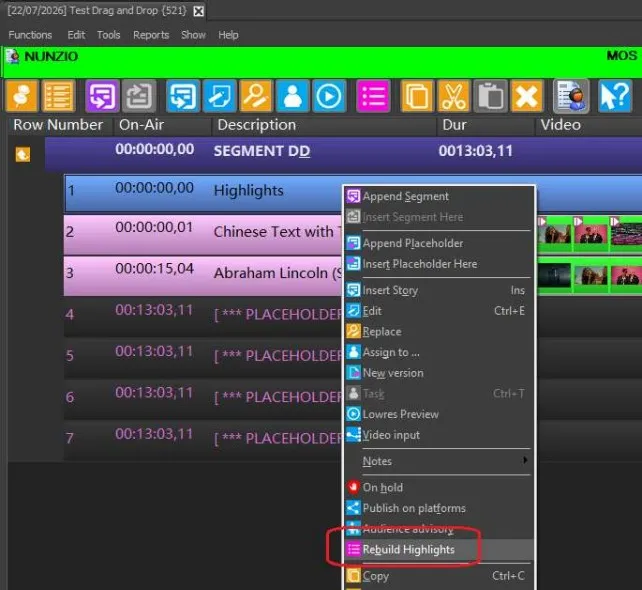
Once all the required parameters have been configured, return to the Rundown, right-click the Highlights Story created at the beginning, and select Rebuild Highlights. This operation processes all the assets in the Rundown that have EDL 9 defined.
[Rebuild Highlights]
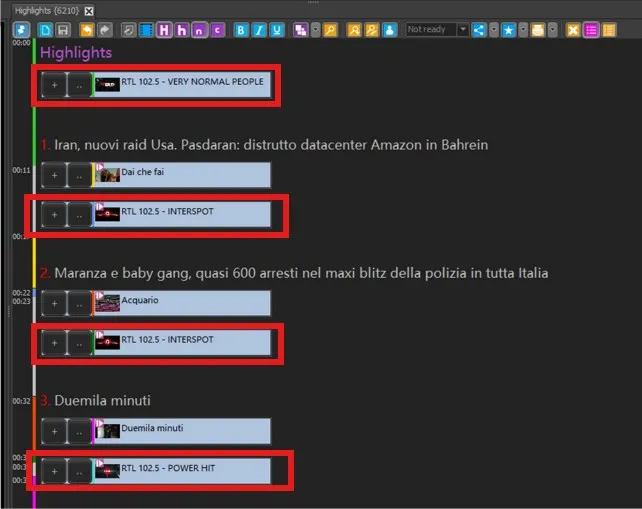
The resulting Highlights Story will contain all the selected assets, interspersed with the Opening, Middle, and Closing assets configured in the Rundown Settings for the Highlights Story, as shown below.
[Highlights result]
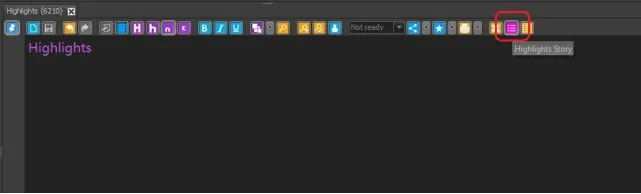 nunzio_story_button
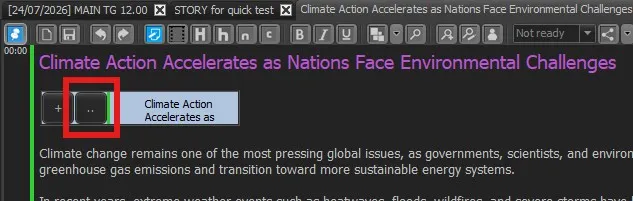 edit_button
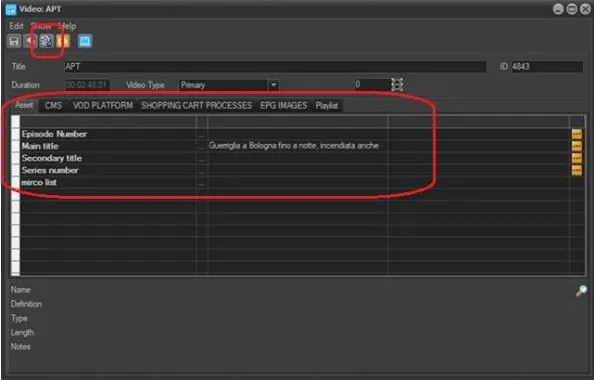 flexi-metadata
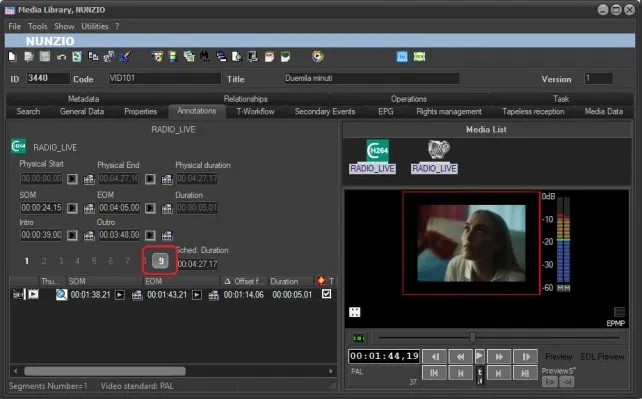 Highlights_EDL9
 Rebuild_Highlights
 Highlights_result