18.4.6.1 Parameters
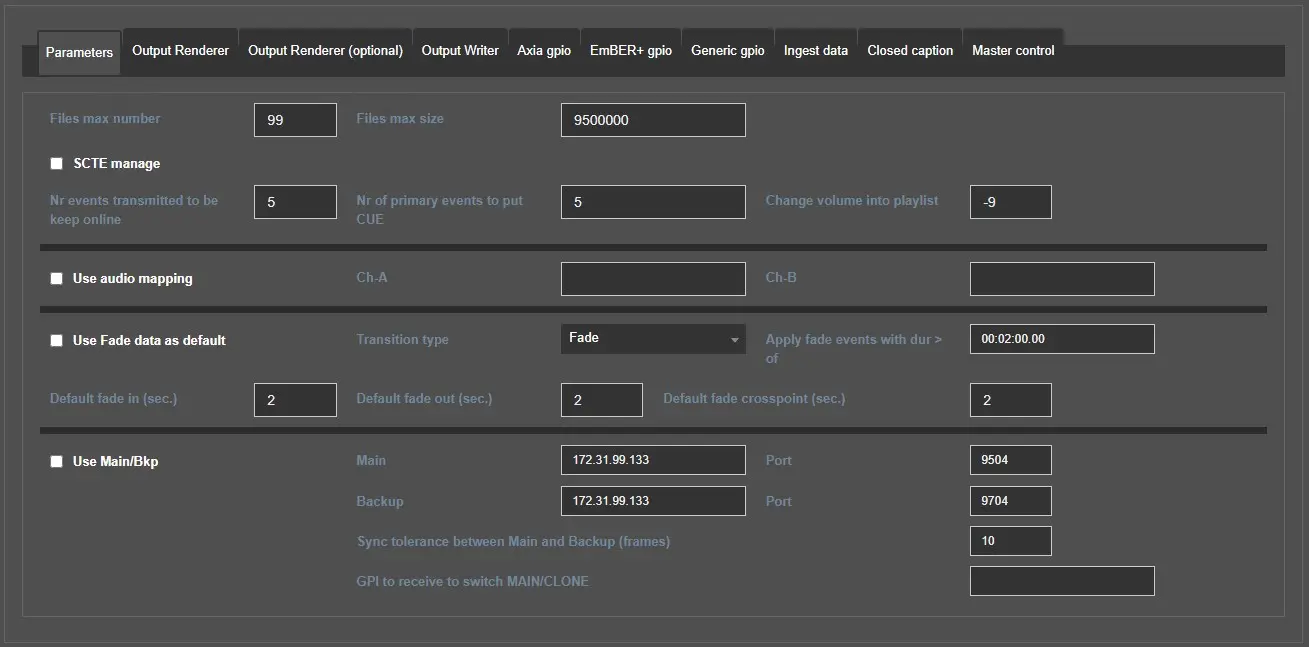
In this tab, it's possible to configure the Engine's general parameters, which are divided into 4 sections:
engine_service_parameters
Playlist and logging
Files max number/size: select the maximum number of log files you want to be generated by the Radiolive Engine Service and their maximum size in bytes.
SCTE manage: Enable this flag to have the Engine Service manage the transmission of SCTE35, SCTE104, or ANC data in the output signal.
Number of events transmitted to be kept online: Set how many transmitted events have to be kept in the playlist before unloading them.
Nr of primary events to put CUE: Choose how many events should be in the Engine service cue.
Change volume into playlist: Set (in dB) how much the playlist's volume have to be reduced when a MEDIA_OVER (an audio playing over the playlist) is being aired.
Audio mapping
Use audio mapping: Enable this flag to use the audio mapping for the output signal.
Ch-A/Ch-B: Specify the mapping for channels A and B here.
Fade
Use Fade data as default: turn transition usage on or off.
Transition type: Select which transition has to be applied.
Apply fade events with dur > of: The transition selected will be applied only to the events whose duration is greater than this value.
Default fade in (sec.): Set the default duration in seconds of the FADE IN.
Default fade out (sec.): Set the default duration in seconds of the FADE OUT.
Default fade crosspoint (sec.): Set the default duration in seconds of the CROSSPOINT.
To apply the CROSSFADE transition correctly, the asset's EOM have to be marked to a value equal to Duration-Crossfade. Engine Service starts the fade at the end of the event, so at the timecode set as EOM. If the EOM is 1 frame less than the clip's duration, there is not enough time to apply the fade before the clip's physical end.
e.g.: To apply a 3-second crossfade to an asset that lasts 30 seconds, the EOM value must be set to 00:00:27.00.
To apply a V-FADE transition, it's enough to do the same, but the Default fade crosspoint should be set to 0.
Main/Backup
Use Main/Bkp: Indicate if the Radio Live system is composed of a single playout running as MAIN (disabled) or by two playouts identified as MAIN and BACKUP (enabled). Activating this flag will also enable the IP address and port fields.
Main: If the main PC is selected in the "PC name" drop-down at the top, the MAIN IP address and port won't be editable because they're automatically retrieved. Instead, it must be specified if the backup PC is selected.
Backup: If the backup PC is selected in the "PC name" drop-down at the top, the BACKUP IP address and port won't be editable, as they're automatically retrieved. Instead, it must be specified if the main PC is selected.
Note: If the radio system setup has been completed correctly, the same addresses and ports will also be displayed in Etere Configuration > Settings > Schedule parameters > Station tab, and the Advanced automation option must be enabled.
Sync tolerance between Main and Backup (frames): Set the minimum difference allowed between the MAIN and CLONE engines. If this threshold is crossed, the BACKUP will realign with the MAIN.
GPI to receive switch MAIN/CLONE: Set the gpi dedicated to the switch MAIN/CLONE (based on the system owned, an Axia, Ember+, or Generic GPIO can be set and dedicated to make the transition from main to clone).
 engine_service_parameters