97.6 How to use a CLIENT for manual recordings
This section describes the complete workflow for performing an ingest operation in Etere Multichannel Ingest, from asset selection to recording control, preview, and post-recording management.
1. Asset Selection and Input Configuration
After selecting or creating an asset, the next step is to define the ingest input source.
Ingest Input Settings
Video device
Select the input source for ingest. Supported sources include SDI and NDI.When selecting NDI, only IP Router channels configured in Resource Configuration are displayed. External NDI sources are not included in the selection list.
Maximum duration
Enables a recording time limit.
If no value is defined, the system automatically applies a default maximum duration of 12 hours.When no duration is explicitly set at the start of recording, the system may apply a fallback limit of 5 hours depending on session conditions.
The last selected input source is automatically retained for subsequent ingest sessions.
2. Preview and Channel Status
After configuring the input source, the ingest channel can be opened and monitored through the Preview interface.
Channel Status Indicators
- Ready (brick red)
The channel is open and ready for recording. - Free (green)
The channel is available but not currently open. - INACTIVE (gray)
The service or channel is unavailable. In this state:- Asset creation is not possible
- OPEN and CLOSE controls are disabled
- Asset creation is not possible
3. Channel Activation (OPEN)
Clicking OPEN initiates channel validation:
- The system checks channel availability
- If successful, status changes to Ready
- If unsuccessful, status remains or returns to Free
The OPEN command applies to each ingest session individually, not globally across all sessions.
4. Recording Control
Recording Modes
- CR (Cue Record)
Prepares the service for recording without starting it immediately. - REC (Record)
Starts the ingest operation.
It is possible to:
- Use CR + REC sequence for controlled start
- Or directly start recording using REC only
Rec Linked Mode
When Rec Linked is enabled:
- Multiple ingest sessions can start simultaneously
- The system verifies that all channels are in Cued state before starting
- Synchronization check duration: 3 to 10 seconds
Stop Operation
- A single Stop command stops all active ingest sessions
- A single confirmation dialog is displayed
- After stopping, the system verifies file integrity before linking it to the asset
Important Recording Rules
- During recording, asset metadata such as Code, Title, and Type can still be modified
- When recording starts, the OPEN button becomes disabled to avoid interruption
- If no progress is detected within 5 seconds after pressing REC, the system aborts the operation and logs an error
- Timecode synchronization across multiple ingests is guaranteed within one frame tolerance
⚠️ Important Note – Channel Exclusivity
Each ingest channel (each service instance) can be used by only one client at a time.
If a channel is already in use, it will appear as occupied and cannot be selected or controlled from another workstation until it is released.
This ensures exclusive access to the ingest resource and prevents simultaneous conflicting recording operations across multiple clients.
5. Closing the Ingest Session
The ingest operation can be terminated using the CLOSE button, which fully releases the channel.
6. Preview and Post-Recording Tools
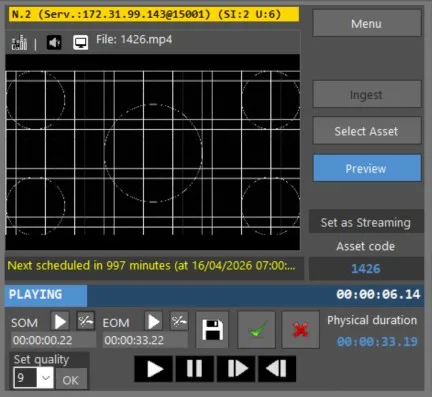
After recording, the file can be immediately previewed using the Multichannel Ingest UI tools, which allow basic editing and navigation.
Playback and Editing Controls
- Move device to SOM
Positions playback at Start of Media - Read device position for SOM
Reads and temporarily pauses current SOM timecode - Move device to EOM
Positions playback at End of Media - Read device position for EOM
Reads and temporarily pauses current EOM timecode - Save in asset EDL
Stores the current segment into the asset’s edit decision list - Save QC
Set the quality of the file you have just recorded from 0 to 9 - Play linked
Plays multiple recorded segments simultaneously when available - File saved
Confirms successful save operation
7. Transaction Logging in Media Library
When ingest is executed using the Start/Stop workflow with Rec Linked enabled, system transactions are automatically registered in the Operations tab of the Media Library asset:
- Source: Original input file
- Destination: Generated recorded file
- Notes: Recording duration and any detected frame drops or skipped frames
8. Emergency Recovery and Reconnection
From newer system versions, the Multichannel Ingest Client supports automatic reconnection in case of unexpected shutdown (e.g., crash or power failure).
In this scenario:
- The client reconnects to the active service
- The user can only stop the ongoing recording
- Media is preserved and not lost
- It is recommended to verify asset linkage after recovery
- For streaming ingest, asset linking is usually automatic within seconds
In practice, if the MultiIngest client closes unexpectedly (for example, due to an application crash or a PC failure), it will be able to reconnect to the corresponding running service and resume control.
In such cases, the user will be able to stop the recording (no further actions are available during this emergency recovery). The media content will not be lost; however, it is recommended to check that the file is correctly associated with the corresponding resource and, if necessary, link it manually. This step may not be required for streaming recordings, as the link to the resource is created a few seconds after the recording begins.
9. Summary operations
A standard ingest operation follows this sequence:
- Create or select asset
- Define video input source (SDI/NDI)
- Open channel (OPEN)
- Start recording (REC or CR + REC)
- Stop recording when complete
- Close channel (CLOSE if required)
- Review and optionally edit asset via preview tools
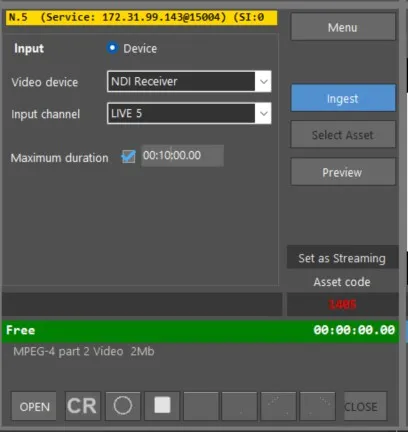 Ingest_Service_-_Ingest
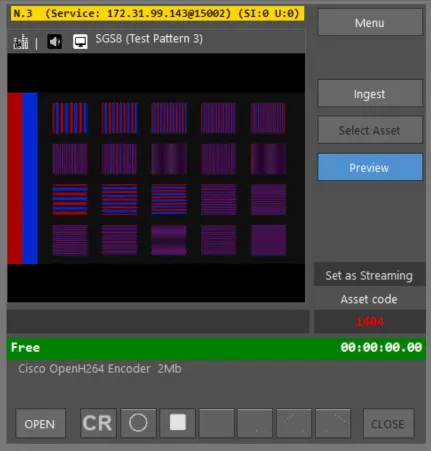 Ingest_Service_-_Preview
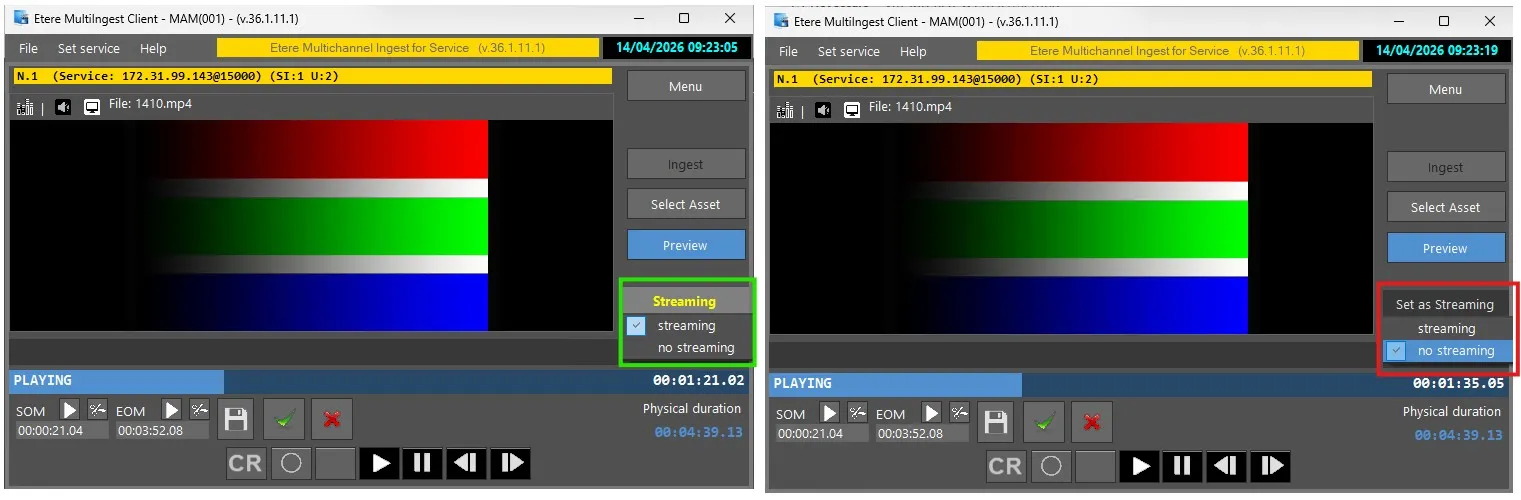 Ingest_Service_-_Set_an_Asset_as_Streaming_or_Not
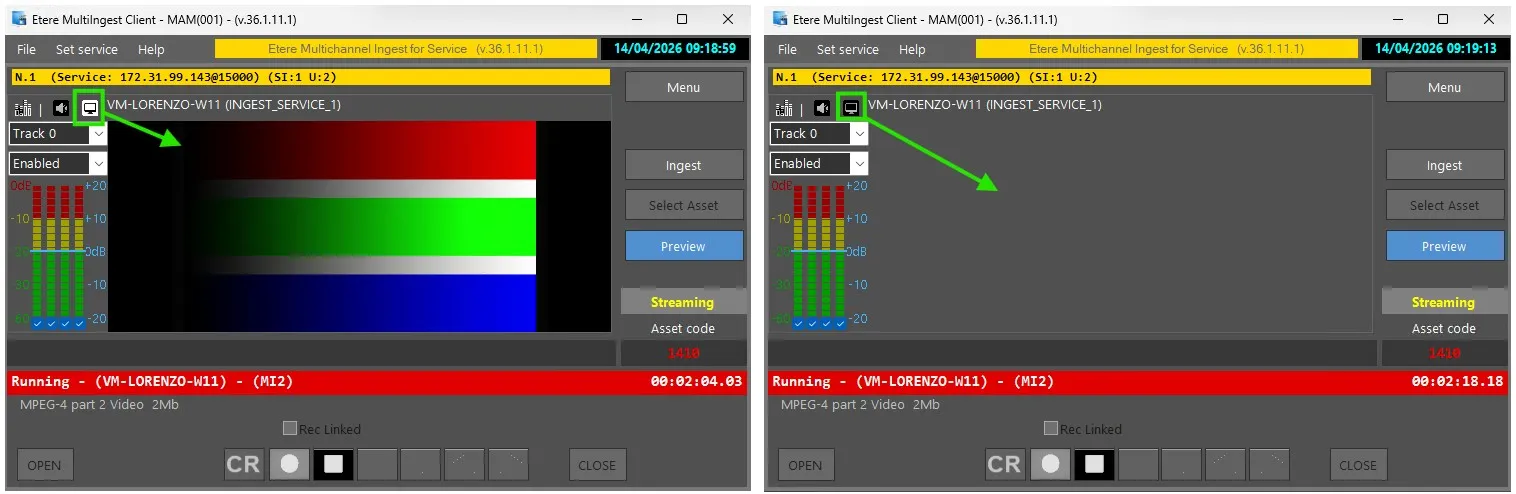 Etere_Ingest_-_Enable_Video_Preview_on_form
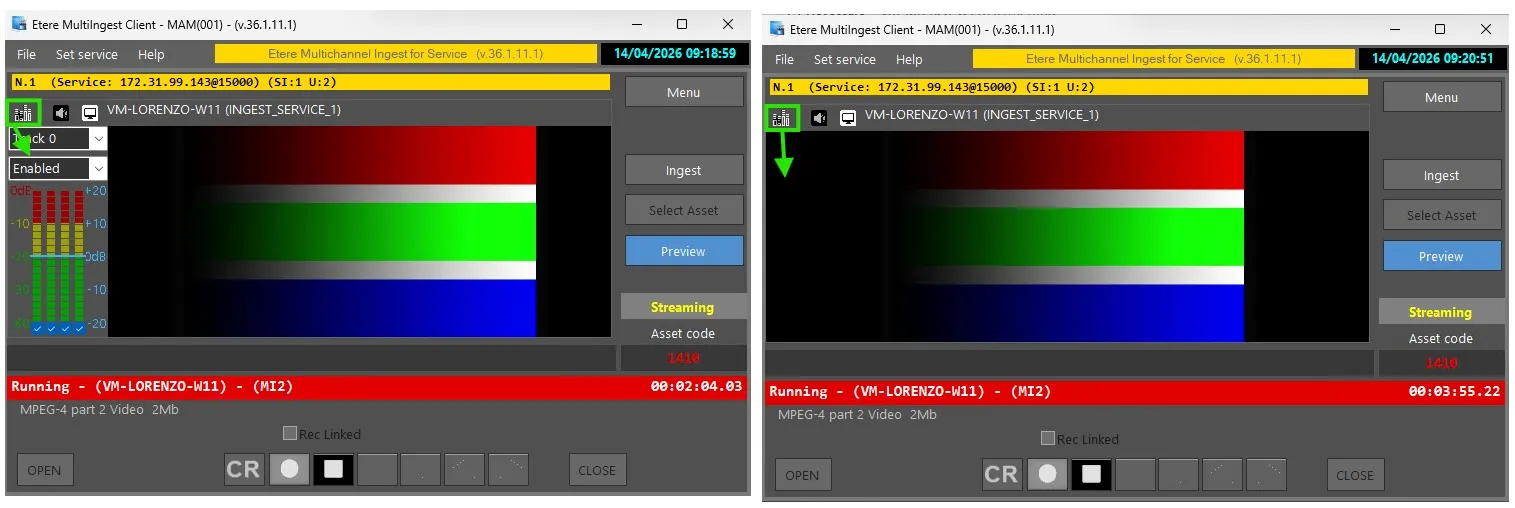 Etere_Ingest_-_Enable_Audio_Preview_on_form
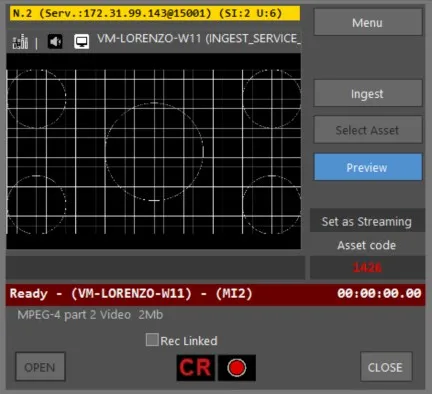 Prepare
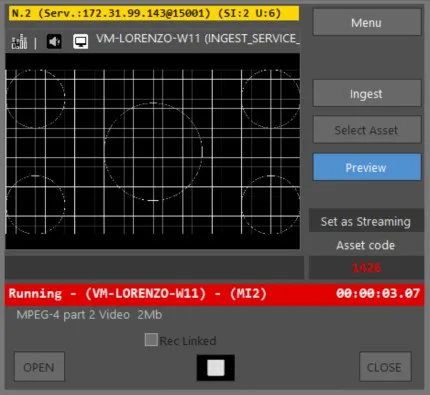 REC
REC
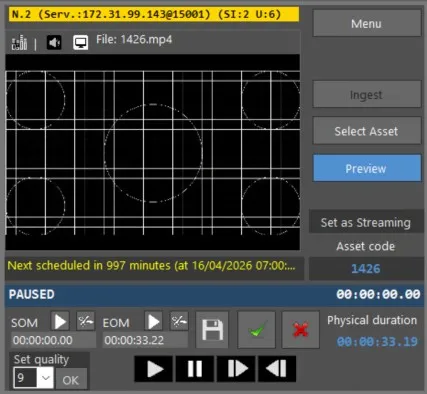 Preview
 Preview2
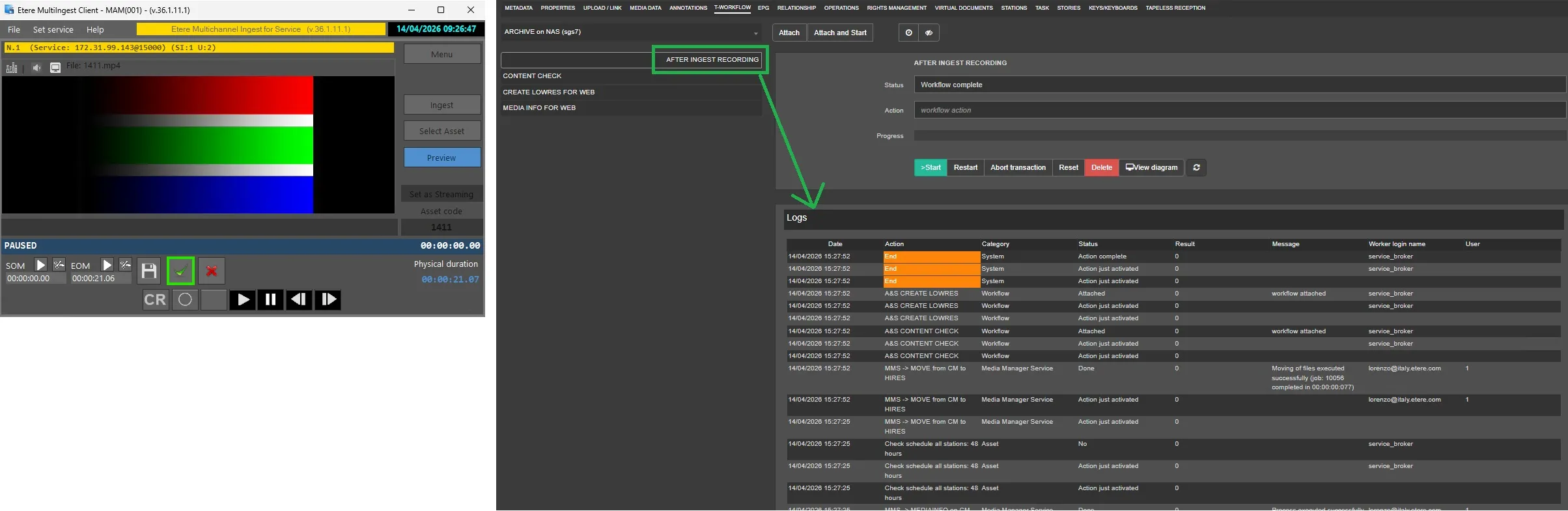 WF_attached_and_started_after_a_confirmation_recording
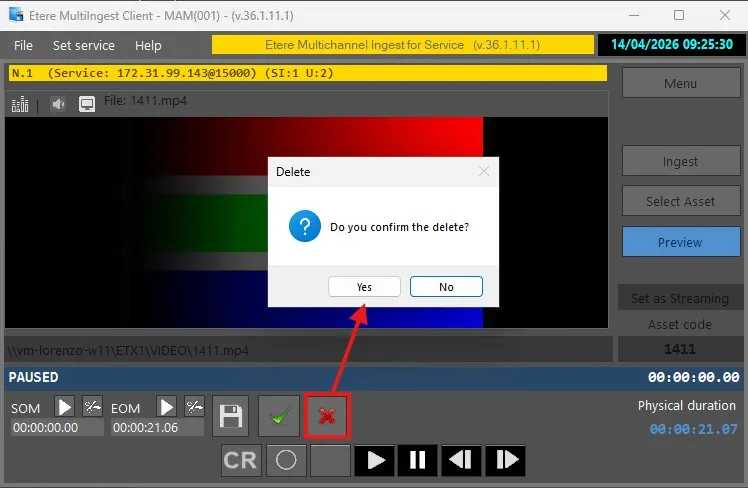 Delete_Recorded_File
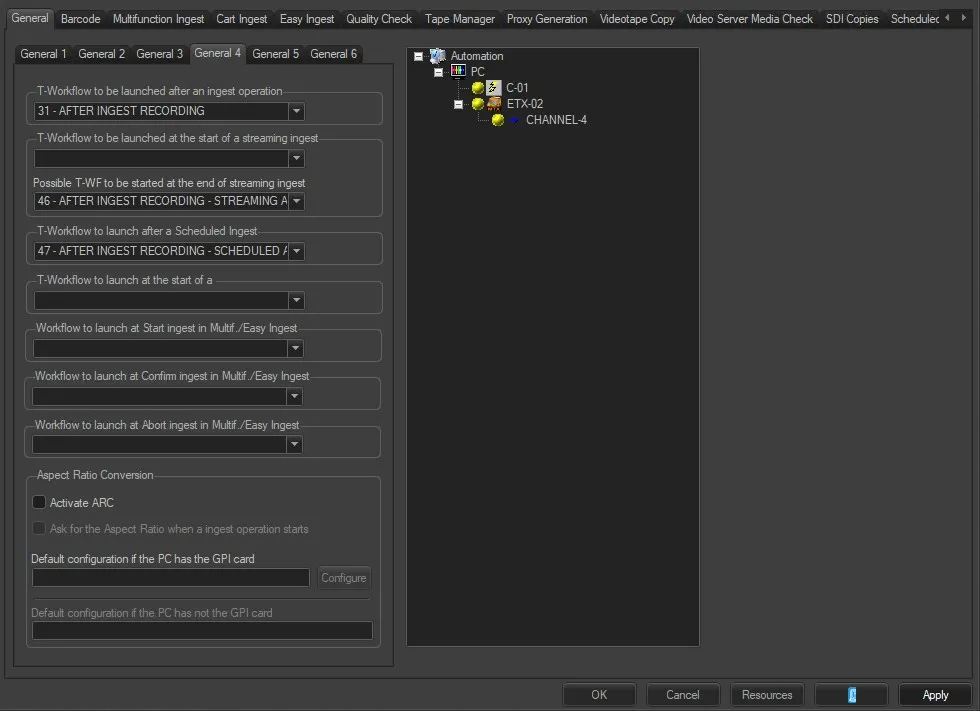 Default_Workflows
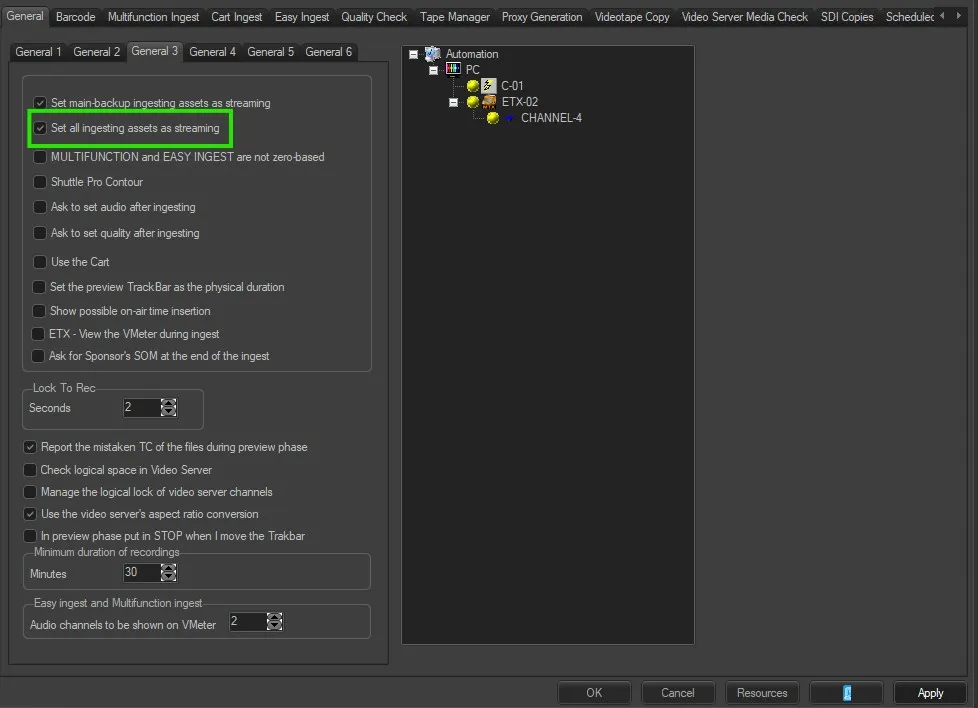 Set_all_Asset_as_Streaming