15.17.4 Audio Mixer
This Etereweb section contains the configuration for Etere Audio Mixer service.
INSTALLATION
The service must be installed on the same pc where the sound card to be used is located. It is possible to install more than one service per machine, however their use is subjected to the licenses owned.
IMPORTANT NOTE: As a part of a new multiplatform generation of Etere applications, this service requires .NET 10 Framework to be installed in the machine. This prerequisite has to be installed separately and before running Etere Updater.
Refer to chapter 1.3.4.2 Etere desktop installation though EtereUpdate.exe for detailed information about the installation procedure.
LICENSING
The license EA9247 “Etere Audio Mixer” allows to have one working service for each license owned.
In Etere Resource Editor, the licenses must be assigned to one or more workstations on which the service(s) will run, one license for each service.
Any services installed, exceeding the number of assigned licenses on the machine, will not work.
E.g.: If a server is expected to host 3 services, I have to assign 3 licenses in the corresponding resource's properties. If 3 is the number of purchased modules in the license and I then install 4 services, the 4th service won't work.
audio_service_licensing
CONFIGURATION
First of all ensure the service is correctly installed and running in the designated workstation.
From the Service droplist, select the service instance to configure, then you can start to set the mixer channels as explained below.
MIXER CHANNELS TAB
Here it's possible to assign the channels of the audio devices present on the machine to the channels of the audio mixer.
audio_mixer_channels_tab
The right column lists the audio channels of the devices located on the machine, each of them is identified by the label "Capture" (audio mixer outputs) or "Render" (audio mixer inputs). Drag and drop them to assign them to mixer channels.
For the mixer input channels you can also assign a custom name and color that will be displayed on the console.
Services need to be restarted in order to apply the changes.
EMBER+ PROVIDER TAB
This is the section dedicated to the definition of the audio mixer's behaviour when it receives or sends commands to trigger EmBER+ GPIO.
audio_mixer_ember_tab
First of all, set the port to use to communicate with EmBER+. The default port is 9000.
Use the left table below to define what should Etere Audio Mixer service do, when an input signal is received and a GPI is triggered. Choose an action among the following and assign it to one (or more) of the 32 GPI available.
In the right table, you can define which GPO should be triggered when a given operation is executed on the Audio Mixer Console.
EmBER+ GPIOs can operate in two different modes:
• Level GPIO: represents a persistent state. The GPIO remains active or inactive according to the current status of the associated function.
• Pulse GPIO: represents a momentary event. The GPIO is triggered only when the associated action occurs and does not reflect the ongoing state of the function.
For example:
• Input Channel 1 - ON/OFF is a Level GPIO. The GPIO state reflects the current channel status: True when the channel is ON; False when the channel is OFF.
• Input Channel 1 - ON is a Pulse GPIO. A pulse is generated when the channel is switched ON.
• Input Channel 1 - OFF is a Pulse GPIO. A pulse is generated when the channel is switched OFF.
The same logic applies to all available mixer functions. Events identified as ON/OFF, or without such indication in the description, provide a continuous status indication (Level GPIO), while events identified specifically as ON or OFF generate a momentary trigger (Pulse GPIO) when the corresponding action occurs.
Available actions and events include:
• Input channel - ON/OFF: Activation or deactivation of the input channel.
• Input channel - CUE (PFL): Activation or deactivation of the CUE output for the related input channel.
• Input channel - PGM: Activation or deactivation of the PGM output for the related input channel.
• Input channel - AUD: Activation or deactivation of the AUD output for the related input channel.
• Input channel - UTL: Activation or deactivation of the UTL output for the related input channel.
• Alternate input PHONE - PGM: Enable or disable the routing of the PHONE input to the PGM output.
• Alternate input PHONE - AUD: Enable or disable the routing of the PHONE input to the AUD output.
• Alternate input PHONE - UTL: Enable or disable the routing of the PHONE input to the UTL output.
• Monitor PGM/AUD/UTL - ON/OFF: Enable or disable the loopback of the PGM, AUD or UTL output to the monitor device.
• Monitor EXT - ON/OFF: Enable or disable the routing of the external audio input to the monitor device.
Volume sliders automation
When channel is switched ON/OFF: Activate these flags to move automatically the slider of the input channel when it's activated or deactivated via Ember+ GPIO.
Bring the volume slider to: Set the desired volume level to reach automatically, when the channel is activated or deactivated.
Taking the time of: Set how much time in milliseconds the slider will take to reach the desired volume level. The higher is the value, the slower will be the slider to reach the set volume level, resulting in a slower fade.
Note: If the parameter "Taking the time of" is set to 0, the slider doesn't move. To set an instant fade, it's enough to set 1 ms.
Once the configuration is done, click the button APPLY AND RESTART to let the service take the modifications.
Note: When the service is restarted, Audio mixer console disconnects and reconnects automatically. Any active input or output on the console, is deactivated.
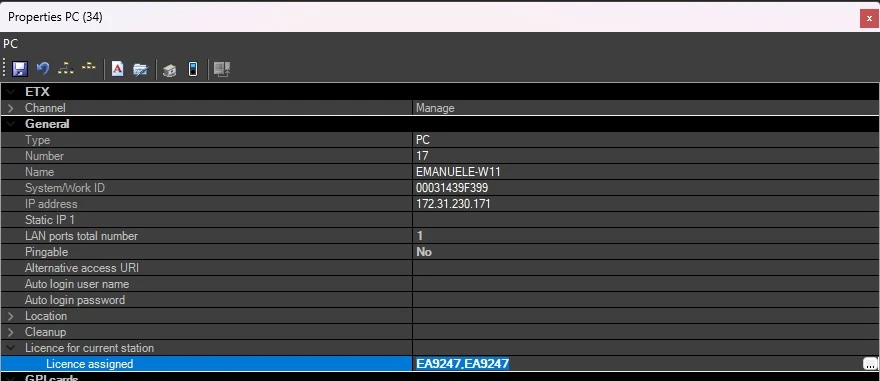 audio_service_licensing
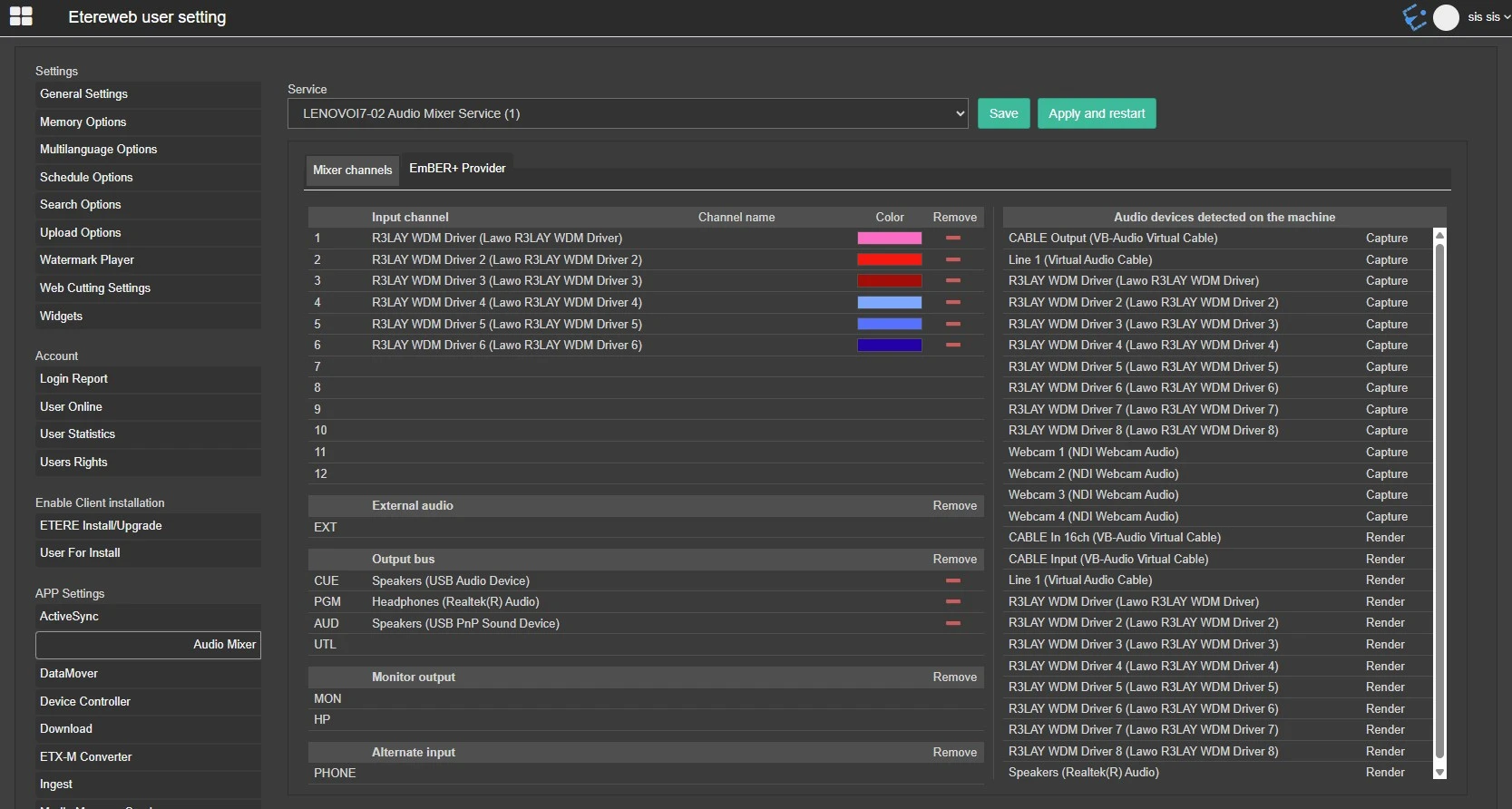 audio_mixer_channels_tab
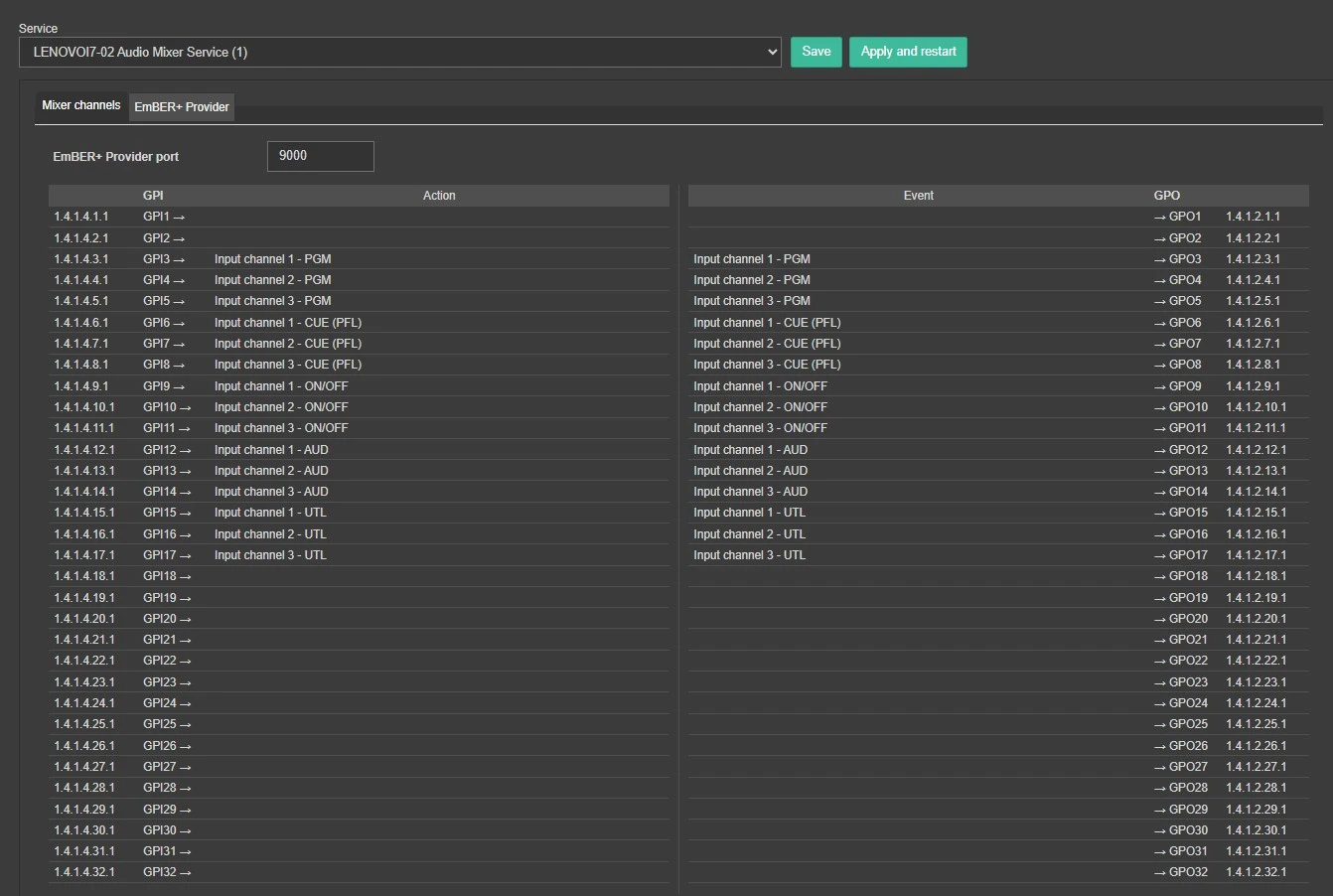 audio_mixer_ember_tab